
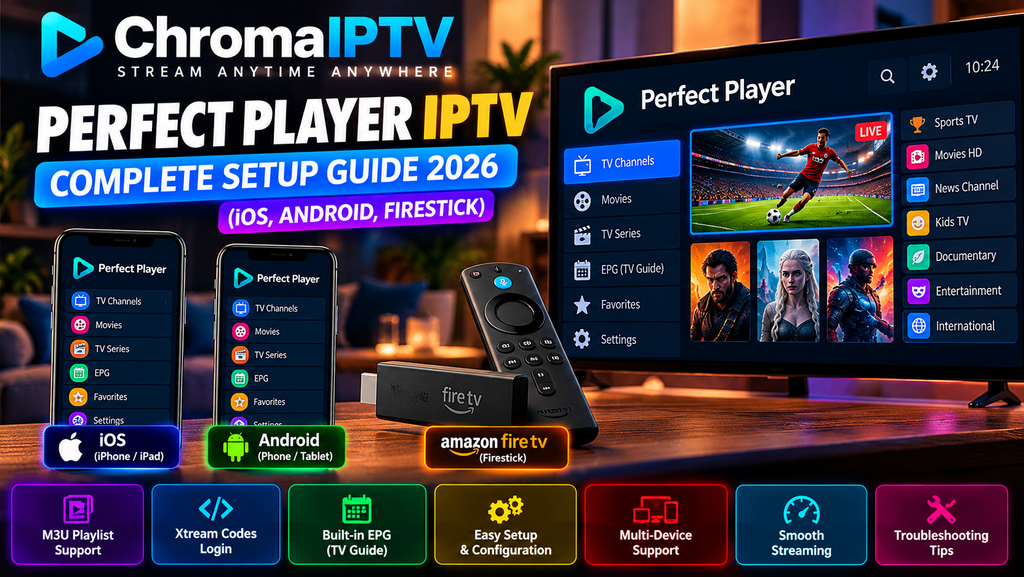
Looking for a simple way to organize and watch your favorite live TV channels on Android TV or Fire TV? Perfect Player IPTV is a media player that lets users load compatible playlists and browse channels through a clean, TV-friendly interface.
In this complete guide, you’ll learn what Perfect Player IPTV is, where to find it, how to configure your playlist, which settings to optimize, and how to troubleshoot common streaming problems.
What Is Perfect Player IPTV?
Perfect Player IPTV is a media player designed to organize and play compatible IPTV playlists. It supports playlist formats such as M3U and can display an Electronic Program Guide (EPG) when a compatible guide URL is provided.
The application does not automatically include TV channels or streaming subscriptions. Users need to supply a playlist from a provider authorized to distribute the content.
Perfect Player IPTV Key Features
Here are some features that make Perfect Player IPTV useful for streaming enthusiasts:
- TV-friendly interface: Browse channels using an interface designed for larger screens.
- M3U playlist support: Load compatible local playlists or remote playlist URLs.
- EPG integration: View program schedules when a supported electronic program guide is configured.
- Channel organization: Navigate channel groups and categories more easily.
- Video playback options: Available playback engines and settings may vary by device and application version.
- Favorites: Quickly access frequently watched channels when supported.
- Customizable settings: Adjust playback and interface preferences to suit your device.
Where to Download Perfect Player IPTV
Always download applications from trusted sources and verify that the version is compatible with your device.
Android and Android TV
To install Perfect Player IPTV:
- Open the Google Play Store on your compatible device.
- Search for Perfect Player IPTV.
- Check the application’s publisher and compatibility information.
- Tap Install if the official application is available.
- Open the application after installation.
If you cannot find the application, check the developer’s official distribution information rather than downloading an APK from an unknown website.
Amazon Fire TV and Firestick
Application availability may differ between Fire TV models and regions.
- Open the Amazon Appstore.
- Search for Perfect Player IPTV.
- Verify the application details.
- Install the application if it is available for your device.
- Launch it and proceed with playlist configuration.
Avoid installing APK files from unverified sources because they may contain modified or malicious software.
How to Set Up Perfect Player IPTV with ChromaIPTV
Once you have installed Perfect Player IPTV, you can configure it with a compatible playlist supplied by ChromaIPTV, provided the service is authorized to distribute the content you want to watch.
Step 1: Obtain Your Playlist Information
First, obtain the playlist information from your provider.
Depending on the service, this may include:
- An M3U playlist URL.
- An EPG URL for program schedules.
- Account details or activation information, if required.
Keep your playlist URL and account credentials private. Anyone with access to your subscription details may be able to use them.
Step 2: Configure the Playlist
Follow these steps to add your playlist:
- Open Perfect Player IPTV.
- Select the Settings or gear icon.
- Find the playlist configuration section.
- Enter your authorized M3U playlist URL.
- If available, enter the corresponding EPG URL.
- Save your settings.
The exact menu names may vary depending on the version of the application.
Step 3: Load Your Channels
After saving the playlist:
- Return to the application’s main screen.
- Select the option to refresh or update the playlist.
- Wait for the channel list to load.
- Open a channel group to browse available content.
- Select a channel to test playback.
Large playlists may take longer to load, depending on your device and internet connection.
Perfect Player IPTV Interface Guide
Understanding the main interface makes it easier to navigate your playlist.
Main Screen
The main screen generally provides access to channel groups and available channels. Selecting a group lets you browse the channels associated with that category.
Channel List
When supported by the playlist and application version, the channel list can display channel names, logos, and current program information.
A properly organized playlist makes it easier to locate the content you want.
Electronic Program Guide (EPG)
The EPG displays television schedules when a compatible guide is available.
Depending on the application version, you may be able to browse upcoming programs and select a program to open its channel.
If the guide is empty or outdated, verify that the EPG URL is correct and refresh the guide.
Recording and Timeshift
Recording and timeshift functionality depend on the application version, device, available storage, and playback source.
Do not assume that every version supports scheduled recording or that every IPTV stream can be recorded. Check the application’s documentation before relying on these features.
How to Optimize Perfect Player IPTV Settings
The right settings can improve playback stability and make navigation more comfortable.
Video Player Settings
Start with the default playback engine.
If a channel displays a black screen or fails to play, check whether your version supports another playback engine, such as ExoPlayer or VLC, and test the available alternatives.
Hardware decoding may improve playback performance on compatible devices, although results vary depending on the hardware and video format.
Buffering and Internet Connection
If you experience buffering, try the following:
- Use a stable internet connection.
- Connect your device through Ethernet when practical.
- Move closer to your Wi-Fi router if the signal is weak.
- Close applications that consume significant bandwidth.
- Restart your router if the connection is unstable.
- Test several channels to determine whether the problem affects one stream or the entire playlist.
Increasing a buffering setting is not guaranteed to solve network congestion or problems on the provider’s servers.
Interface Settings
Depending on the available options, you may be able to customize channel logos, group visibility, favorites, and other interface preferences.
Hiding unused channel groups can make navigation easier, particularly when working with large playlists.
Perfect Player vs. TiviMate vs. IPTV Smarters
Several IPTV player applications are available, and the best choice depends on your device and preferred features.
| Feature | Perfect Player | TiviMate | IPTV Smarters |
|---|---|---|---|
| Main purpose | Playlist playback | IPTV playlist playback | IPTV playlist playback |
| Playlist support | Compatible playlist formats | Supported playlist formats | Supported playlist formats |
| EPG | Supported configurations | Supported configurations | Supported configurations |
| Device compatibility | Depends on version | Depends on version | Depends on version |
| Pricing | Verify current availability | Free and paid options may be available | Availability and pricing may vary |
| Best suited for | Users who prefer a configurable interface | Users who want a TV-focused interface | Users who prefer a straightforward setup |
Features, supported devices, and subscription costs can change. Check each application’s official information before choosing one.
Remember that an IPTV player and an IPTV content provider are different things. Installing a player does not automatically provide access to television channels.
Common Perfect Player IPTV Problems and Solutions
Here are several common problems and practical ways to troubleshoot them.
1. Failed to Load Playlist
If the playlist does not load:
- Check that the M3U URL has been entered correctly.
- Verify that the playlist address is still accessible.
- Confirm that your subscription or access authorization is active, if applicable.
- Check your internet connection.
- Refresh the playlist after correcting any errors.
If the URL contains account credentials, avoid sharing it publicly.
2. Channels Appear but Do Not Play
If channels are listed but playback fails:
- Test your internet connection.
- Try another channel from the same playlist.
- Check whether the stream is available from the provider.
- Test another supported playback engine, if available.
- Restart the application and try again.
If only one channel fails, the issue may be related to that particular stream rather than the player itself.
3. EPG Is Not Updating
If program information is missing or outdated:
- Open the application settings.
- Locate the EPG configuration.
- Verify the guide URL.
- Refresh the guide.
- Check whether your playlist and EPG use compatible channel identifiers.
If the problem continues, contact the playlist provider for assistance.
4. The Application Crashes with a Large Playlist
Large playlists can consume significant memory on older or lower-powered devices.
Try these steps:
- Restart the application.
- Update the application if an official update is available.
- Remove unnecessary playlists or channel groups where supported.
- Clear the application cache through your device settings, if appropriate.
- Restart your device.
The maximum practical playlist size depends on your device, memory, and application version.
5. Streaming Freezes or Buffers Frequently
Frequent buffering can result from several causes, including a weak Wi-Fi signal, network congestion, device limitations, or problems with the streaming source.
Test your connection and try another authorized stream. If only streams from one provider are affected, contact that provider to investigate the issue.
Why Choose ChromaIPTV?
If you are considering ChromaIPTV, evaluate the service based on verifiable features and whether it has the necessary rights to distribute the content it offers.
Before signing up, consider checking:
- Content availability: Confirm which channels and programs are included.
- Device compatibility: Make sure your device and preferred player are supported.
- Streaming quality: Look for reliable information about available resolutions and playback performance.
- Customer support: Check how the provider handles technical problems.
- Pricing and trial terms: Review the cost, duration, renewal conditions, and cancellation policy.
- Distribution rights: Verify that the service is authorized to provide the channels and other content advertised.
Do not assume that a service includes a particular number of channels, movies, or premium features unless those claims have been verified.
Frequently Asked Questions
Is Perfect Player IPTV free?
The application may be available without a purchase, depending on the version and distribution channel. However, access to streaming content may require a separate subscription.
Does Perfect Player IPTV include channels?
No. Perfect Player is a media player, not a television content package. Users must supply a compatible playlist from an authorized source.
Can I use Perfect Player IPTV on Android TV?
Yes, on compatible Android TV devices when a suitable version of the application is available.
Can I use Perfect Player IPTV on Firestick?
Compatibility depends on the application version and Fire TV device. Check the official application information before installing it.
Why is my IPTV playlist not loading?
Incorrect URLs, expired access, network problems, and unavailable streaming sources can all prevent a playlist from loading.
What is an M3U playlist?
An M3U playlist is a file or URL that identifies media streams and can contain information used to organize them in a compatible player.
What is an EPG URL?
An EPG URL provides electronic program guide information, allowing a compatible player to display television schedules.
Is Perfect Player better than TiviMate?
Neither application is automatically better for everyone. The right choice depends on your device, interface preferences, required features, and budget.
Final Thoughts
Perfect Player IPTV can be a useful option for organizing compatible playlists on supported devices. By configuring your playlist correctly, checking EPG settings, and optimizing your network connection, you can improve your overall viewing experience.
If you plan to use ChromaIPTV with Perfect Player, verify device compatibility, review the service’s terms, and confirm that the content is legally available in your region before getting started.

