
To convert an HDMI source into IPTV, connect it to an encoder. Send the encoded stream over a network, then play it on a compatible receiver or player. An encoder compresses a video and audio signal and packages it as a stream for IP delivery. This local workflow lets a camera, computer, or media player feed one or more screens. A local HDMI stream does not include a consumer IPTV subscription or channel rights.
The setup can serve a home, office, hotel, or control room. Picture quality and latency depend on the devices and network working together. A separate consumer service setup involves choosing a provider, account, and supported app. This guide explains both paths so readers can tell which one fits their needs. The right setup depends on where the stream must play and how many screens need it.
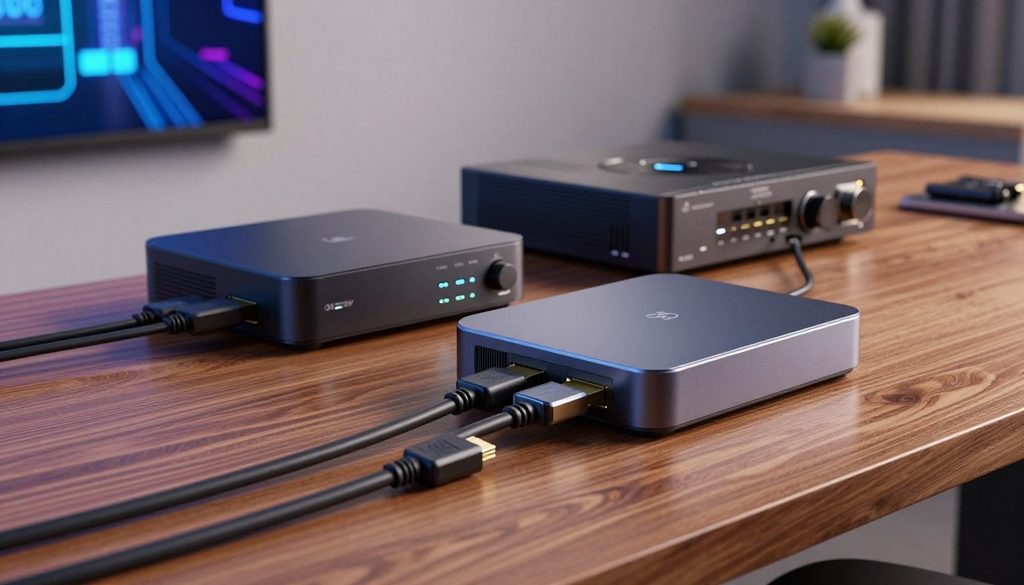
how to convert hdmi to iptv
Key Takeaways
- An encoder turns an HDMI feed into a network stream.
- A compatible receiver or player must decode that stream.
- Choose the stream protocol based on the receiving device.
- Multicast can serve several viewers on a managed local network.
- A consumer IPTV subscription is separate from local HDMI distribution.
- Test the full video and audio path before a larger rollout.
What Happens Between an HDMI Source and IPTV Playback?
An encoder is the device that compresses an HDMI video and audio signal and packages it for delivery over an IP network. It creates a stream from a camera, computer, set-top box, or media player. That stream travels over Ethernet to a receiver or player, then reaches a display.
The encoder handles the input; the receiver makes the network stream usable on a screen. The receiver must understand the stream’s codec and protocol to produce a displayable signal. H.264 and H.265 are common video codecs, which describe how the video is compressed.
The encoder creates the network stream
The HDMI source sends video and audio through a cable to the encoder. The encoder compresses those signals, then packages them for IP delivery. This step turns a direct HDMI connection into a stream that can travel across a local network.
An HDMI-to-IP encoder does more than change a plug shape. An HDMI-to-SDI converter changes one physical video interface to another. It does not, by itself, create an IP stream for network playback.
A converter that only changes a physical interface cannot replace an encoder in an IP distribution path.
The receiver turns the stream back into video
An IP set-top box receives the stream and converts it to HDMI for a television. A compatible computer player can also decode the stream and show it on its display. In either case, playback depends on the receiving device’s support for the chosen codec.
Some streams can reach several screens through the network, while others target one player. The encoder and receiving device need matching playback formats, not just a working Ethernet connection. Confirm that both ends support the same codec before purchasing or configuring the equipment.
What Equipment and Network Does the Setup Need?
A working setup needs a source, an encoder, a network path, and a compatible playback device at the display. A hardware path uses a dedicated encoder and Ethernet, while a software path uses a computer with an HDMI capture card. Both paths need a receiving device that can play the resulting stream.
An encoder alone does not provide a complete distribution system. It still needs a network connection, a compatible receiver or player, and a display. The playback device must support both the selected codec and streaming protocol.
Hardware for a dedicated encoding path
A dedicated setup starts with an HDMI source, such as a camera or media player. Connect the source to the encoder, then connect the encoder to an Ethernet switch or router. The receiving device connects to that network and sends a displayable signal to the screen.
This path keeps encoding on a standalone device rather than a general-purpose computer. It can suit a fixed installation where the same source must remain available. The encoder’s input format and output options still need to fit the source and intended receiver.
The network and endpoint devices
The basic hardware list includes an HDMI cable, encoder, Ethernet switch or router, receiver, and display. A television with no suitable network-video feature needs an IP set-top box or another decoder. A receiver may also be a computer running a player such as VLC.
A software setup replaces the dedicated encoder with an HDMI capture card and a computer. OBS Studio or ffmpeg can encode and send the captured feed. This approach depends on the computer, capture card, and software all staying active.
Network access alone does not make every endpoint compatible. The chosen device must decode the codec and accept the stream protocol. Check the receiver’s supported formats before settling on an encoder.
How to Convert HDMI to IPTV With a Hardware Encoder
Start with the source and encoder powered on, then connect the HDMI cable before configuring the network stream. A model with a web interface can often be set up through a browser on the same network. Begin with a direct test before sending the feed to many viewers.
The receiving player must support the protocol selected on the encoder. UDP, RTP, RTSP, and HLS are common options, but a device may support only some of them. Settings names and menus vary by encoder.
Connect the source and configure the encoder
- Connect the HDMI source to the encoder’s HDMI input.
- Connect the encoder’s Ethernet port to the network switch.
- Open the encoder’s configuration interface in a browser, if available.
- Set a resolution and codec supported by the source and receiver.
- Choose a protocol, addressing mode, and bitrate for the intended path.
- Start the stream and open it in a compatible client.
Start the stream and verify playback
After starting the stream, check it on a separate receiving device. A computer player can help confirm whether the encoder is sending usable video and audio. A successful preview on the encoder’s own interface does not prove that a remote client can play the stream.
Check for a stable picture, clear sound, and expected timing. If the client cannot open the stream, confirm that its protocol and address match the encoder settings. A small test also helps separate an encoding issue from a receiver problem.
Keep the first test limited to one client. Verify both picture and sound on a separate receiving device before relying on the feed.
Which Encoder Configuration Matches the Source Count?
A multi-input rack encoder fits a larger channel lineup, while a compact encoder can suit a smaller number of independent HDMI feeds. The right configuration depends on the source count, input format, and receiving equipment. Input count is only one part of the choice.
Some encoders accept a higher-resolution input but produce a lower-resolution output. A 4K input does not guarantee 4K streaming output. The stream’s codec and network interface also shape how a unit fits the installation.
| Model | Inputs and source format | Output or stream capability | Network or codec notes |
| H-HDPerformux-XX | 4, 8, 16, or 24 HDMI inputs | Up to 24 SPTS UDP or RTP outputs and 1 MPTS output | H.264 or H.265; HDCP-enabled sources supported |
| 4-channel H-HDPerformux | 4 HDMI inputs | Up to 24 SPTS UDP or RTP streams, multicast or unicast | H.264 or H.265; adjustable video rate, 1-20 Mbps |
| Thunder-2 | 2 independent HDMI inputs, up to 1080p/60 | Separate UDP or RTP outputs, unicast or multicast | Web-based configuration |
| JTECH-ENCH4 | 4K@60Hz 4:4:4 input | Up to 1080p@60Hz; 1 main stream and 3 lower-resolution substreams | H.264, H.265, MJPEG; one 100M full-duplex RJ45 output |
The H-HDPerformux models suit installations that need several HDMI channels in a rack. The Thunder-2 handles two independent feeds and supports up to 1080p/60. These different input counts make it easier to match a unit to a smaller or larger channel plan.
The JTECH-ENCH4 accepts 4K@60Hz 4:4:4 input, but its output reaches up to 1080p@60Hz. It supports UDP, HTTP, RTSP, RTMP, HLS, and SRT. Its main stream and three lower-resolution substreams can serve different viewing needs.
Compare the output limits and network interface as carefully as the input count.
Which Streaming Protocol Fits Each Destination?
For several wired viewers on one managed LAN, UDP or RTP multicast is a practical low-latency starting point. Multicast lets multiple receivers join one stream, helping reduce repeated network traffic. Unicast sends a separate stream to a specific receiver.
A protocol works only when both the encoder and receiving client support it. The destination matters: a local television network and a phone app may need different delivery methods.
Protocols for a wired local network
UDP and RTP can carry streams with low delay on a local network. Multicast can send one stream to many interested receivers instead of making a separate copy for each one. This method suits managed LANs where the switches handle multicast traffic.
Unicast is a direct choice for one receiver or a small number of distinct destinations. Each receiver gets its own stream, so multiple viewers can use more network capacity. The encoder and player must agree on the address and transport method.
Protocols for servers and consumer playback
SRT is used for contribution over less predictable networks. HLS supports broad consumer playback, though it adds latency. Some encoders and players also support RTSP or RTMP, so the available options vary by device.
| Protocol or mode | Common use | Key compatibility check |
| UDP/RTP multicast | Several receivers on a managed LAN | Encoder, player, and network support multicast |
| UDP/RTP unicast | A specific receiver on a local network | Client address and transport settings match |
| SRT | Contribution across a less predictable network | Both ends accept SRT |
| HLS | Broad playback across consumer devices | Player accepts HLS and its added delay |
A low-latency choice is not automatically the easiest one for every screen. A television box may accept UDP, while a mobile app may expect a server-delivered format. Choose from the receiver’s supported protocols rather than the protocol name alone.
How Should Video Quality, Bitrate, and Latency Be Balanced?
A high-quality stream needs settings that every device in the path can process, not just a high bitrate. Start with compatible formats, then set the resolution and data rate for the network. A single setting cannot fix every picture or sound issue.
More bitrate uses more network capacity, so the available bandwidth must carry the full stream. The source, encoder, receiver, and display must also support the intended resolution. Audio needs a format the receiving system can play.
- Match the output resolution to the source and display.
- Confirm that the encoder and receiver both support the codec.
- Set a bitrate the network can carry without crowding other traffic.
- Verify embedded HDMI audio and the receiving audio format.
- Test latency across the complete playback path.
H.264 and H.265 are common codec choices, but a receiver that lacks support cannot decode the stream. A 1080p source cannot supply the same source detail as 4K content. The encoder and display also need to handle the chosen output resolution.
Latency comes from several stages, including encoding, transport, network delivery, decoding, and playback. A slow point anywhere along that path can add delay. Audio and video may also behave differently if the receiving equipment handles them in separate ways.
Test the complete audio and video path at the settings intended for normal viewing.
How Do TVs, Set-Top Boxes, and Phones Receive the Stream?
A television with an HDMI input can display an IP stream when a compatible decoder or set-top box sits between the network and the TV. The box receives the stream, converts it to HDMI, and feeds the television. The TV itself does not need to decode the network format.
A phone generally needs a server to turn a local multicast feed into a mobile-friendly stream. A consumer IPTV app and a local HDMI distribution system serve different purposes. An encoder does not provide a channel subscription or rights to show content.
Getting network video onto a television
In a hotel with 24 channels, each channel can travel as a multicast transport stream. An IP set-top box at each TV joins the needed stream and outputs HDMI to the screen. This lets the same channel lineup reach many rooms over the local network.
A TV without a network-video feature needs a compatible IP set-top box or decoder. The box must support the stream’s codec and protocol. It then acts as the bridge between Ethernet and the TV’s HDMI input.
Mobile playback and consumer IPTV apps
A desktop computer can play a compatible stream in VLC or another media player. The player must support the stream format and have network access to the encoder. This can be useful for checking playback without connecting a television.
Phones generally cannot request a local UDP multicast stream in the same way as a set-top box. A video server can receive that feed and deliver a mobile-friendly format that an app can request. The server adds a conversion and delivery step.
A consumer subscription provides access to a provider’s content under its service terms. It does not turn a viewer’s own HDMI source into a network stream. Confirm the exact playback app or decoder before distributing the stream to every screen.
Which Network Settings Prevent Dropped or Missing Streams?
A missing link on an Ethernet run is a cabling or network-path problem, not something an encoder can boost. CAT 5 Ethernet runs have a 100m maximum length. A longer path needs an intermediate switch or point-to-point optical link.
A PoE switch supplies DC power to compatible devices, but it does not extend Ethernet range. Multicast traffic also needs proper switch handling. These checks help separate link faults from stream delivery issues.
| Situation | Correct check or remedy | What it does not do |
| Ethernet run up to 100m | Check the cable and link status | Guarantee that the stream settings are correct |
| Run with no network link | Add a switch or point-to-point optical transceivers | Fix an encoder or receiver configuration error |
| PoE power requirement | Use a PoE switch with compatible devices | Extend the Ethernet range |
| Multicast traffic management | Check switch multicast handling | Increase the link’s available bandwidth |
When video drops or never appears, start with the link between the encoder and receiver. Then check whether the switch handles multicast traffic as expected. A strong HDMI signal at the input cannot make up for a broken network path.
- Confirm link lights and IP addressing at both endpoints.
- Check the switch’s multicast handling.
- Compare available bandwidth with the combined stream bitrate.
For any run beyond 100m, use an appropriate intermediate switch or point-to-point optical link.
When Does Software Encoding Make Sense?
A computer with an HDMI capture card can encode a stream without a dedicated standalone encoder. The card brings the HDMI video and audio into the computer, where software can create and send the stream. This route offers flexibility for testing or occasional use.
A software encoder depends on the computer and capture device staying operational. A crash, update, or sleep setting can stop the feed. That makes a computer less suited to continuous unattended service.
The basic workflow connects the HDMI source to a capture card, then connects that card to a computer. OBS Studio, VLC, and ffmpeg are software options for working with video streams. The operator selects the capture device, sets the video source, and configures the output stream.
The computer must have enough capacity to capture, encode, and send video while remaining stable. The capture card also needs to work with the source and software. A test can reveal whether the chosen setup handles the intended format.
Software gives users more control over a trial or a small, occasional stream. It can be useful when the computer is already part of the media workflow. A dedicated hardware encoder is usually a better fit when the feed must run for long periods without regular attention.
Use the software route for a trial workflow only if the computer can remain stable for the full session.
How Can U.S. Viewers Choose a Legal IPTV Provider and Test a Free Trial?
A consumer IPTV subscription and an HDMI encoder solve different problems, so viewers should verify service legitimacy before entering payment details. A subscription does not convert a viewer’s HDMI source. Provider checks should cover licensing, local channels by ZIP code, device support, renewal terms, uptime, and customer service.
A free trial or a large advertised channel count does not prove licensing, quality, or long-term availability. ChromiaTV advertises a 24-hour free trial. Viewers can use a trial to test playback, not as a guarantee of future service.
Check service legitimacy and local availability
Viewers should look for clear licensing information and check which local channels are available for their ZIP code. They should review renewal terms and see what support the provider offers. Service claims alone cannot confirm a stream will work well at home.
Device compatibility matters before signing up. ChromiaTV lists Fire TV Stick, Android TV, Smart TVs, MAG, Windows, macOS, iPhone, and iPad. Its setup instructions also name IPTV Smarters Pro, TiviMate, and XCIPTV as player options.
Set up the account and test compatible devices
ChromiaTV’s setup process starts with choosing a subscription. Account details arrive by email, then the viewer installs a compatible IPTV player and starts streaming. The player and device must match the provider’s supported options.
During a trial, viewers can check channel access and playback on the devices they plan to use. The evening period matters because streaming quality should be tested during peak hours. A short test can show how the service behaves before a longer commitment.
Related reading includes Best IPTV Encoder Box 2026: Improve Streaming Quality & Reduce Lag, Best IPTV Service 2026: How to Choose the Right IPTV Provider, and IPTV Solutions for Operators: A Complete Industry Guide.
Test playback during peak evening hours and read the renewal terms before committing beyond a trial.
What Should Be Verified Before an IPTV Rollout Goes Live?
A multi-screen rollout should be validated as a complete system before every receiver is connected. One test receiver can reveal setup errors before they affect an entire site. Confirm source rights, network addressing, multicast behavior, and bandwidth before expansion.
A sample 16-stream office setup is estimated at approximately 160Mbps, and a sample deployment includes 120 IP set-top boxes. On a Cisco switch setup, set-top boxes need DHCP addressing and multicast needs IGMP. An encoder with Gigabit Ethernet and an H-STB-IP with 100base-T need a switch between them.
- Confirm that source rights permit the planned distribution.
- Verify DHCP addressing for the receivers.
- Confirm IGMP multicast behavior on the network.
- Calculate combined bandwidth for simultaneous streams.
- Test the stream on one receiver before expanding.
IGMP snooping can limit multicast traffic to switch ports that request it. A VLAN may isolate IPTV traffic from other network uses. These settings can help keep a larger deployment organized.
Keep one known-good receiver and stream configuration available for troubleshooting during rollout.
The test should use the same stream and network path planned for full service. A single endpoint can confirm the feed reaches a screen, while the bandwidth check covers simultaneous traffic. Record the working receiver settings so the team can compare later tests against them.
Conclusion
A reliable HDMI-to-IPTV setup starts with matching the encoder to the source and the receiver to the stream. The essential path is an encoder, a compatible network, and a receiver or player. Each part has a clear role in turning an HDMI feed into video on a screen.
Local distribution hardware serves a source the operator controls. A consumer subscription provides access to a provider’s content under its terms. Those choices should stay separate when planning a system.
Before buying equipment or subscribing, write down the source format, intended viewers, network path, and playback device.
FAQ
Do HDMI-to-IPTV encoders need an internet connection?
No, an HDMI-to-IPTV encoder can send a stream over a local Ethernet network without internet access. The encoder and receiving devices need network connectivity to each other, but that network can remain local. Internet access is needed when the stream must reach a destination outside the local network. A local network can still carry video between rooms or buildings.
Can a smart TV play an encoder’s stream without a set-top box?
Yes, a smart TV can play the stream directly if its app or built-in player supports the encoder’s codec and protocol. Many TVs do not support every network stream format. In that case, an IP set-top box or decoder can receive the stream and send video to the TV over HDMI. The TV then displays the decoder’s output.
What is the difference between multicast and unicast IPTV?
Multicast lets multiple receivers on a local network join one stream, while unicast sends a separate stream to each destination. Multicast can reduce repeated network traffic when many viewers watch the same feed. Unicast is direct for a specific receiver, but each destination uses its own stream. The encoder and network must support the chosen mode.
Can a phone receive a UDP multicast stream directly?
Usually, a phone needs a server to deliver a UDP multicast feed in a format its app can request, such as HLS. Phones and mobile apps do not generally join local multicast streams in the same way as set-top boxes. A server can receive the local feed, convert or package it, and make it available to a compatible app over the network.
Can an encoder make a 4K stream from a 1080p source?
No, an encoder cannot create real 4K source detail from a 1080p input. The source sets the ceiling for the video’s original quality. The encoder, receiver, and display must also support the target resolution for 4K playback. Upscaling a 1080p image may change its output size, but it does not add the missing source detail.
Does a PoE switch extend an Ethernet cable beyond 100m?
No, a PoE switch supplies power to compatible devices but does not extend Ethernet range by itself. CAT 5 Ethernet runs have a maximum length of 100m. A switch placed along the network path or a point-to-point optical link can extend a longer connection. The PoE feature matters for device power, not for added cable distance.
Can VLC play an IPTV encoder stream?
Yes, VLC can play an encoder stream when it supports the stream’s protocol and the computer can reach the encoder over the network. The encoder must also be sending a format VLC can decode. A successful connection depends on the stream address and client settings being correct. VLC can serve as a useful test client before connecting a television decoder.

