
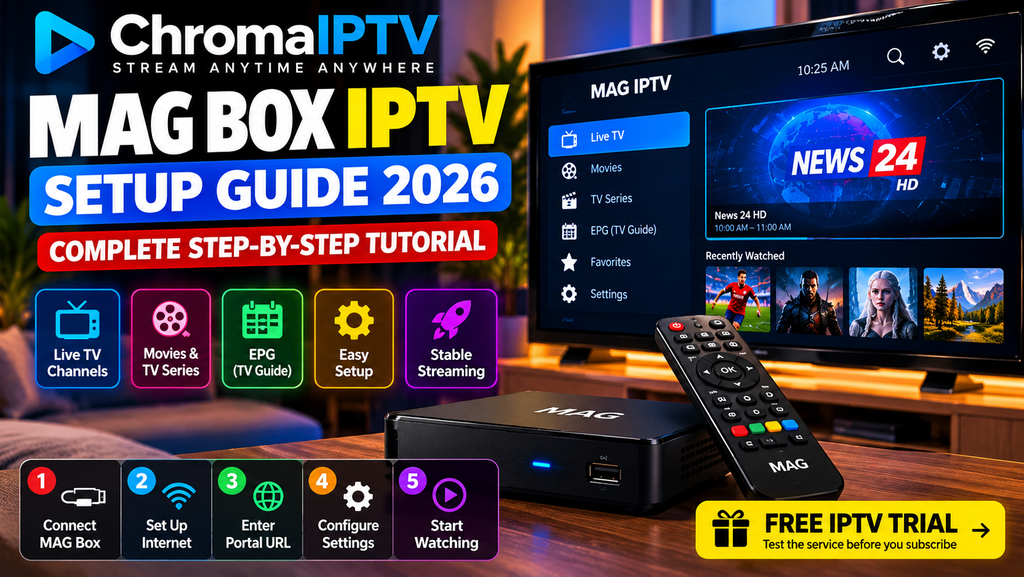
Setting up a MAG box for IPTV streaming can be straightforward when you follow the correct steps. These dedicated streaming devices are designed to provide access to compatible television services through an internet connection.
In this complete guide, you’ll learn how to connect your MAG box, configure your network, enter your service provider’s portal URL, and troubleshoot common problems. We’ll also explain how a free IPTV trial can help you evaluate a streaming service before purchasing a subscription.
What Is a MAG Box?
A MAG box is a dedicated set-top box designed for internet-based television. Many models use a specialized operating system and provide a simple interface for navigating live TV channels and other supported content.
Unlike general-purpose streaming devices, compatible MAG boxes can connect to services that use a supported portal-based system.
Popular MAG Box Models
Different MAG box models offer different hardware capabilities and streaming features. Depending on the model, you may find:
- MAG 322/323: Models designed for basic IPTV streaming.
- MAG 324/325: Devices offering updated hardware and performance.
- MAG 351/352: Models with additional video playback capabilities.
- MAG 420/421: Devices offering modern connectivity and selected high-resolution features.
- MAG 524/525: Models designed for users seeking more advanced hardware features.
Check the manufacturer’s specifications before purchasing a device, particularly if you need 4K playback or support for a specific streaming service.
What You Need to Get Started
Before configuring your MAG box, prepare the following:
- A compatible MAG box.
- An HDMI cable.
- The appropriate power adapter.
- A stable internet connection.
- A television or compatible display.
- An active subscription or trial account with a compatible, authorized IPTV provider.
- The portal URL supplied by your provider, if your device requires one.
Having these items ready can make the installation process easier.
What Is a Free IPTV Trial?
A free IPTV trial allows users to test an IPTV service for a limited period before deciding whether to purchase a subscription. Depending on the provider, the trial may offer access to selected live television channels, supported video-on-demand content, or other streaming features.
A trial is particularly useful for checking whether a service works correctly with your MAG box and internet connection.
Before choosing a free IPTV trial, consider these important factors:
- Device compatibility: Confirm that the provider supports your specific MAG box model.
- Streaming quality: Test playback stability and picture quality on your television.
- Channel availability: Check whether the channels you want are included.
- Connection requirements: Determine whether your internet connection is suitable for your preferred video quality.
- Trial conditions: Check the duration, registration requirements, and whether payment details are required.
- Content authorization: Choose a provider that has the necessary rights to distribute the channels and video content it offers.
How to Evaluate a ChromaIPTV Free IPTV Trial
If ChromaIPTV offers a trial compatible with your device, use the trial period to evaluate its features before committing to a paid plan.
Start by confirming that your MAG box is supported and that you have received the correct connection instructions. Then test the service with your normal internet connection.
During the trial, pay attention to loading times, picture quality, playback interruptions, and the availability of the content included in your test account.
A trial should help you make an informed decision. Verify the current terms and available features directly with ChromaIPTV rather than assuming that every device or feature is supported.
How to Set Up a MAG Box With ChromaIPTV
The setup process depends on your MAG model and the connection method supported by your provider. Follow these steps when your device and subscription are compatible.
Step 1: Connect Your MAG Box
Begin by connecting the hardware.
- Connect the MAG box to your television using an HDMI cable.
- Connect the Ethernet cable if you plan to use a wired internet connection.
- Connect the power adapter.
- Turn on the television and select the correct HDMI input.
Once everything is connected, the MAG box should begin its startup process.
Step 2: Configure Your Internet Connection
After the device starts, verify that it can connect to the internet.
For Ethernet:
- Connect the network cable to your MAG box and router.
- Allow the device to establish the connection.
- Check the network settings if the connection does not work.
For Wi-Fi, if supported by your model:
- Open the network settings.
- Select your wireless network.
- Enter your Wi-Fi password.
- Confirm that the device has internet access.
A wired connection is often preferable for streaming because it can reduce wireless interference.
Step 3: Enter the IPTV Portal URL
Some MAG devices use a portal URL to connect to a compatible IPTV service.
To configure the portal:
- Open the device settings.
- Navigate to the portal or server configuration section.
- Locate the relevant portal URL field.
- Enter the address provided by ChromaIPTV, if the service supports your model.
- Save the settings.
- Restart the device if required.
Menu names vary between models and firmware versions. Follow the instructions supplied by your provider and device manufacturer.
Important: Only enter a portal address obtained from a source you trust.
Step 4: Complete Device Registration
Some services require device registration before streaming becomes available.
If registration is necessary:
- Open the system information menu.
- Locate the device identifier requested by the provider.
- Follow the provider’s official registration procedure.
- Confirm that the device has been authorized.
Only share the information required for registration, and review the provider’s privacy practices before submitting device details.
Step 5: Start Streaming
Once the configuration is complete, restart the device if necessary.
Then:
- Wait for the interface to load.
- Open the available content menu.
- Select a channel or another supported program.
- Test playback and verify that the stream works correctly.
If the service does not load, review the troubleshooting section below before changing additional settings.
Navigating the MAG Box Interface
The interface may vary depending on your device model and installed software. However, most supported interfaces provide basic navigation controls.
Channel Navigation
- Arrow buttons: Move between menus and available channels.
- OK button: Select an item or confirm an action.
- Back button: Return to the previous screen.
- Menu controls: Access available playback and configuration options.
Consult your device manual if the buttons behave differently.
Accessing the Electronic Program Guide
An electronic program guide, commonly called an EPG, displays television scheduling information when supported by the service.
To use it:
- Open the guide from the interface or remote control.
- Browse the available channels.
- Review current and upcoming programs.
- Select a program to view additional information.
Guide availability and the amount of scheduling information depend on the provider and its data sources.
Managing Favorite Channels
If your interface supports favorites, you can use this feature to make frequently watched channels easier to find.
Open the channel menu, select the desired channel, and follow the on-screen instructions to add it to your favorites.
Optimizing MAG Box Performance
A properly configured network can improve streaming reliability. However, performance also depends on the device hardware, provider infrastructure, and the quality of the source stream.
Use Ethernet Instead of Wi-Fi
An Ethernet connection can provide a more consistent connection than Wi-Fi in environments with wireless interference.
If you prefer Wi-Fi, place the router in a suitable location and avoid unnecessary obstacles between the router and your device.
Check Your Internet Speed
Your required internet speed depends on the video resolution, compression, and other network activity.
As a general guideline, you can use the following approximate starting points:
- SD streaming: Around 3–5 Mbps.
- HD streaming: Around 5–10 Mbps.
- Full HD streaming: Around 10–20 Mbps.
- 4K streaming: Around 25 Mbps or more.
These figures are guidelines, not guarantees. A stable connection and sufficient available bandwidth are important, particularly when several devices share the same network.
Review Your Device Settings
For better compatibility:
- Keep your device firmware updated when updates are available from the manufacturer.
- Use playback settings supported by your specific model.
- Avoid changing advanced decoding settings unless you understand their purpose.
- Restart the device if it becomes unresponsive.
- Check whether the provider recommends a particular configuration.
Avoid using arbitrary buffer settings because their effectiveness varies by device and playback software.
Troubleshooting Common MAG Box Problems
The Portal Will Not Load
If the portal remains on a loading screen, try the following:
- Verify your internet connection.
- Check the portal URL for typing errors.
- Confirm that your subscription or trial is active.
- Restart the MAG box and router.
- Contact your provider to check for service interruptions.
If the problem persists, confirm that the portal method is compatible with your device.
Channels Are Buffering or Freezing
Playback interruptions can result from network congestion, wireless interference, device limitations, or problems with the streaming source.
Try these steps:
- Switch to Ethernet if possible.
- Pause downloads and other bandwidth-intensive activities.
- Restart your router and streaming device.
- Test your connection speed.
- Contact your provider if the issue affects multiple channels.
A faster internet package will not necessarily fix buffering caused by an overloaded or unavailable streaming server.
MAC Address Not Authorized
Some MAG-compatible services use device identifiers for registration.
If you receive an authorization error:
- Check the device information in the system settings.
- Confirm that the correct device was registered.
- Review the provider’s activation instructions.
- Contact the provider if the registration details are correct.
Do not attempt to bypass device authorization.
Black Screen or No Picture
If the device is running but the television displays a black screen:
- Confirm that the correct HDMI input is selected.
- Check both ends of the HDMI cable.
- Try another HDMI port.
- Restart the device.
- Test another supported channel or video source.
If only one stream fails, the problem may be related to that particular source rather than your television.
MAG Box vs. Fire TV Stick vs. Android TV Box
Choosing the right device depends on your streaming needs and the applications you want to use.
| Feature | MAG Box | Fire TV Stick | Android TV Box |
|---|---|---|---|
| Main purpose | Dedicated set-top-box streaming | General streaming and apps | General streaming and apps |
| Setup | May require portal configuration | Usually application-based | Usually application-based |
| IPTV compatibility | Depends on the service and model | Depends on compatible apps | Depends on compatible apps |
| 4K playback | Available on selected models | Available on selected models | Available on selected models |
| Other streaming apps | Depends on the device | Broad app selection | Varies by device |
| Best suited for | Users needing a compatible dedicated device | Users seeking a compact streaming device | Users wanting a flexible Android-based platform |
Which device should you choose?
A MAG box may suit you if your provider explicitly supports its portal-based system. A Fire TV Stick or Android TV device may be more convenient if you prefer application-based streaming.
Before buying a device or subscription, confirm compatibility with the services you intend to use.
How to Choose the Right Free IPTV Trial
Finding a free IPTV trial is not just about choosing a service that offers temporary access. It is also important to check reliability, compatibility, transparency, and content rights.
Use this checklist before signing up:
- Verify compatibility: Make sure the provider supports your device.
- Read the trial terms: Confirm the duration and any registration requirements.
- Test streaming quality: Evaluate playback during normal viewing conditions.
- Check the available content: Ensure the service offers the channels you actually need.
- Review pricing: Understand the subscription cost after the trial, if applicable.
- Verify authorization: Choose a provider that is authorized to distribute its content.
- Protect your information: Avoid sharing unnecessary personal or payment details.
Taking these steps can help you compare services and avoid unexpected costs.
Ready to Test IPTV on Your MAG Box?
Before subscribing to a streaming service, verify that your device is supported and that the provider supplies the correct configuration instructions.
If ChromaIPTV offers a compatible free IPTV trial, you can use the trial to assess its setup process, playback quality, and available features before deciding whether a paid subscription meets your needs.
Check the current trial terms directly with ChromaIPTV, and make sure the service is authorized to distribute the content you plan to watch.
Frequently Asked Questions
What is a free IPTV trial?
A free IPTV trial is a limited evaluation period that allows users to test a streaming service before purchasing a subscription. Its duration, features, and registration requirements depend on the provider.
Can I use a MAG box for IPTV?
Yes, compatible MAG boxes can connect to IPTV services that support their software and connection methods. Check the requirements for your exact model.
How do I connect my MAG box to an IPTV service?
Connect the device to your television and internet network, then follow the provider’s configuration instructions. Some services require a portal URL and device registration.
Why does my MAG box keep buffering?
Possible causes include a weak internet connection, network congestion, device limitations, or problems with the streaming source. Testing an Ethernet connection and restarting your equipment are useful first steps.
Does every IPTV provider support MAG boxes?
No. Compatibility depends on the provider’s technology and the device model. Confirm support before purchasing a subscription.
Should I test an IPTV service before subscribing?
A trial can help you evaluate compatibility, playback quality, and available features. Always review the terms and confirm that the provider has the necessary distribution rights.
Final Thoughts
Configuring a MAG box involves connecting the hardware, establishing an internet connection, and entering the correct settings for a compatible service.
A carefully evaluated free IPTV trial can help you determine whether a provider meets your requirements before you commit to a subscription. By checking device compatibility, network stability, trial conditions, and content authorization, you can make a more informed streaming decision.

