
Managing digital entertainment takes the right tools. The setup perfect player process helps organize IPTV playlists and program guides.
This IPTV setup guide offers clear steps for viewers across the country. It works with Fire TV, Android devices, and Windows computers, keeping your media library easy to access.
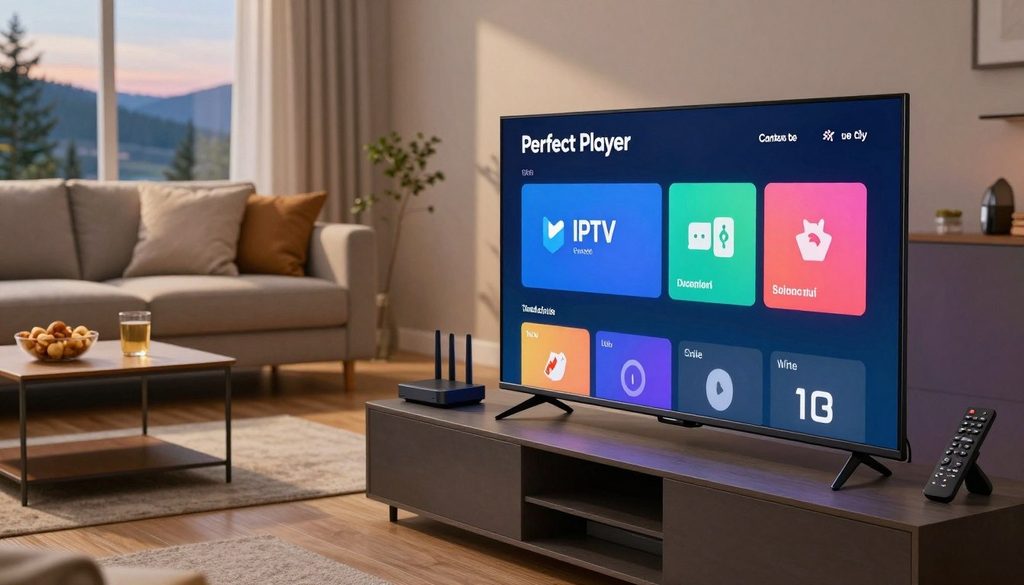
setup perfect player
Proper EPG alignment and network optimization can improve streaming quality. These steps support steady playback on your preferred hardware.
For Perfect Player Canada users, this resource highlights legal access. Licensed content supports responsible and sustainable streaming.
Key Takeaways
- Learn how to organize your IPTV playlists and EPG data efficiently.
- Discover compatibility across Fire TV, Android, and Windows platforms.
- Follow simple steps for network optimization and better playback.
- Understand the necessity of using only licensed and legal streaming sources.
- Gain confidence in managing your digital media library with ease.
What Perfect Player Does and What Canadian Viewers Need
Perfect Player connects your media sources to your television screen. It is only a playback interface. It does not host, provide, or sell television channels or streaming content.
How Perfect Player Handles IPTV Playlists and Electronic Program Guides
The software organizes Perfect Player IPTV playlists into a clear, user-friendly format. After importing M3U files, the app builds a menu for easy navigation.
The app also includes an electronic program guide with schedule information. Viewers can see what is airing now and what comes next on favorite channels.
Supported Devices for Canadian Homes
This platform works across many supported IPTV devices. It offers a consistent, reliable interface on streaming sticks and desktop computers.
Amazon Fire TV Stick and Fire TV
The Fire TV ecosystem is a popular choice for Canadian households. Perfect Player runs smoothly on these devices for daily media use.
Android TV, Google TV, and Android Phones
Users can install the app from the Google Play Store on Android smart TVs and mobile devices. This supports smooth viewing across multiple screens at home.
Windows Computers and Compatible Smart TVs
The Windows version provides full functionality for users who prefer desktop setups. Many Android smart TVs can also run the player without extra hardware.
Legal Access, Regional Availability, and Internet Requirements
When exploring legal IPTV Canada options, viewers should choose authorized, reputable playlist providers. Legitimate services protect privacy and support content creators fairly.
Regional availability affects which services work within Canadian borders. Check that your provider follows local regulations to prevent service interruptions or connection problems.
A stable internet connection is essential for high-quality streaming. Consistent network speed reduces buffering and keeps viewing smooth and enjoyable.
Prepare the Device and IPTV Details Before Setup
Preparing your home network and gathering access credentials are essential first steps for Canadian viewers. This foundation supports consistent, high-quality streaming during each viewing session.
Check Internet Speed, Wi-Fi Stability, and Data Usage
High-definition streaming needs a fast, stable internet connection. Canadian households should aim for at least 25 Mbps download speed to prevent buffering during peak hours.
With Wi-Fi, place your router centrally to reduce signal interference. Monitor monthly data usage because high-quality streams can use significant bandwidth over time.
Collect the M3U Playlist or Xtream Codes Credentials
Before opening the application, have your M3U playlist credentials ready. Providers usually send them as a URL or login details with a username and password.
Store these details in a secure place. Keeping them nearby prevents delays during setup.
Confirm Provider Compatibility With Perfect Player
Not every service works well with every application. Confirm that your provider supports the player’s standard formats, such as M3U or Xtream Codes API.
Choose a Reliable VPN Only When It Serves a Legitimate Privacy Need
Protecting IPTV VPN privacy matters to users who want secure browsing habits. A VPN can mask traffic, but it cannot fix slow connection speeds.
Why a VPN Does Not Replace a Licensed IPTV Subscription
A VPN only encrypts your data; it does not grant legal access to content. A VPN cannot replace a licensed IPTV subscription; a license grants the right to view broadcast material.
“Privacy tools are essential for modern digital life, but they should be used to complement, not substitute, legitimate service agreements.”
Review Free Trial IPTV Offers Safely
Many providers offer a free trial iptv so you can test service quality before committing. Choose providers offering a transparent get 24 hours test without credit card to avoid unwanted charges.
What a 24-Hour Test Without a Credit Card Should Include
A good trial should let you test the full channel lineup and stream stability. Also check whether EPG data loads correctly during this period.
How to Evaluate a Free IPTV Trial From ChromaIPTV
When testing a free iptv trial chromaiptv, check stream quality and customer support. If the service meets your needs, consider a long-term plan.
| Preparation Step | Action Required | Priority |
| Network Check | Verify 25 Mbps speed | High |
| Credentials | Save M3U/Xtream details | High |
| Privacy | Configure VPN if needed | Medium |
| Trial Test | Verify stream stability | Medium |
Install Perfect Player on Amazon Firestick and Fire TV
This guide shows you how to safely install and configure Perfect Player on Fire TV. A proper Perfect Player Firestick installation prepares your device for high-quality media playback across Canadian networks.
Enable the Required Fire TV Installation Permission
Before adding third-party software, adjust your device settings. Open Settings on Fire TV, then select My Fire TV.
Choose Developer Options and turn the setting for “Apps from Unknown Sources” ON. These Fire TV permissions help you install apps outside the standard library.
Find and Install Perfect Player From the Amazon Appstore
The official store offers the most reliable way to get the software. Use the search icon on your home screen to find the Amazon Fire TV app by name.
Find the official listing, then select Get or Download. Your system will handle the installation automatically.
Install the App Safely When It Is Unavailable in the Local Store
The application may not appear in your regional store. If so, use a downloader tool to sideload it.
Verify the Source Before Using an Android APK
Prioritizing Android APK safety matters when downloading files from external websites. Use the official developer website or a trusted repository to avoid malicious software.
“Security is not a product, but a process.”
— Bruce Schneier
Remove Untrusted Downloader Files After Installation
After installation, open your download folder. It is best practice to delete the APK file, free storage, and keep your device clean.
Open Perfect Player and Approve Essential Permissions
Open the application from your library for the first time. It will request storage access to read playlist files and cache data.
Approve these requests so the Amazon Fire TV app works correctly. Without them, the player cannot load content lists or save configuration settings.
Position the App for Faster Access on the Fire TV Home Screen
Frequent users can keep their favorite tools close at hand. Hold the Home button on your remote to open the Apps menu.
Highlight the Perfect Player icon and select Move. Place the app in the top row for quick and easy access whenever you turn on your television.
Set Up Perfect Player With an M3U Playlist
Your IPTV service starts with the M3U playlist setup process. This step links your provider to the app, so you can access subscribed content.
Open the Playlist Management Screen
To begin, launch the application and open the main settings menu. Select the “General” tab, then choose “Playlist.” This opens the screen for entering your service details.
Enter the M3U URL Without Changing Its Characters
Enter the IPTV playlist URL exactly as your service provides it. One typo or missing character can stop the system from connecting to the server. Use the on-screen keyboard carefully, matching every symbol and letter to the source string.
Name the Playlist for Easy Identification
After entering the URL, give your connection a clear name. This helps when you manage multiple sources or trial accounts. A descriptive label helps you identify the active service quickly.
Save the Playlist and Wait for the Channel List to Load
After saving your settings, the application will try to fetch the data. Wait while the Perfect Player channel list loads. This may take moments, depending on your provider’s library size and network speed.
What to Do When the Playlist URL Fails
If the connection fails, check that your internet connection works. Review the URL for missing characters. Restarting the application may fix temporary handshake issues with the server.
How Expired Credentials and Extra Spaces Affect Loading
Hidden characters or expired access often cause loading errors. Make sure no spaces appear at either end of the URL. If your subscription expired, the server will reject the request and show an empty list.
Organize Channels Into Practical Categories
After loading the data, improve viewing by managing playlist categories. Hide unwanted groups or rename folders to match your preferences. This makes hundreds of channels easier to navigate for Canadian viewers.
Refresh the Playlist After Provider Changes
Providers often update channel lineups or server addresses. If channels are missing or streams break, return to playlist settings and select refresh. This makes the application download the latest service data.
| Issue Type | Common Cause | Recommended Fix |
| Empty Channel List | Incorrect URL input | Re-enter the link carefully |
| Loading Timeout | Network congestion | Check Wi-Fi or use Ethernet |
| Authentication Error | Expired credentials | Contact your IPTV provider |
| Missing Categories | Outdated playlist data | Perform a manual refresh |
Configure an Electronic Program Guide and Playback Options
Accurate EPG data and customized playback options can improve your IPTV experience. Fine-tuning these settings keeps viewing smooth and organized. A proper EPG setup supports a reliable daily television routine.
Add the EPG URL Supplied by the IPTV Provider
Open the settings menu and find the EPG section. Enter the exact URL from your provider to load the latest IPTV guide data.
Copy the link exactly, without extra spaces. The app then fetches channel schedules automatically.
Match EPG Data With the Correct Playlist
After adding the URL, link the guide to your active playlist. This crucial step shows program information beside the correct channel names.
If the data does not sync at once, check that the playlist ID matches the EPG source in settings. This match prevents empty guide listings and keeps the interface clean.
Adjust the Time Zone for Canadian Provinces
Canada spans multiple regions, so set the clock for your local area. Incorrect Canadian time zones make the guide show programs at the wrong time.
Eastern, Central, Mountain, and Pacific Time Settings
Most users in major urban centers choose the standard offset for their region. You can adjust the time shift in settings to match your local broadcast schedule.
Atlantic and Newfoundland Time Considerations
Atlantic and Newfoundland viewers may need a custom time offset. Always verify that the guide shows the current local time, so you do not miss your favorite programs.
“The secret of getting ahead is getting started, and the secret of getting started is breaking your complex tasks into small, manageable tasks.”
Mark Twain
Choose the Right Decoder for Stable Playback
Choosing the correct video decoder settings supports hardware compatibility. Most modern devices work best with the hardware decoder, which uses the device’s dedicated chip.
If you notice visual glitches or stuttering, switch to the software decoder. This often fixes compatibility problems with certain stream formats.
Configure Buffering, Aspect Ratio, and Audio Preferences
You can improve streaming by adjusting the buffer size in playback settings. A slightly larger buffer helps maintain a steady stream during small network changes.
Set your aspect ratio to “fit” or “stretch” for your screen size. Also choose an audio track when the stream supports multiple languages.
Set Parental Controls and Hide Unwanted Categories
Built-in parental controls make content management simple. You can lock categories with a PIN to restrict access to mature content.
You can also hide unwanted categories to simplify your channel list. This makes sports, news, or entertainment channels easier to find.
Optimize Smooth IPTV Streaming Across Canadian Networks
A high-quality viewing experience in Canada needs more than a fast internet plan. Many users find that the secret to smooth IPTV streaming lies in managing their local network and hardware settings.
Use Ethernet or a Strong 5 GHz Wi-Fi Connection
For the most reliable connection, Ethernet streaming is the gold standard. Connect your device directly to your router to avoid wireless interference.
If wired access is not possible, choose a 5 GHz Wi-Fi IPTV setup. It transfers data faster and faces less interference from appliances than the older 2.4 GHz band.
Reduce Congestion From Other Streaming and Gaming Devices
Your home network has limited capacity. When devices share the same IPTV bandwidth, performance often suffers.
- Disconnect unused devices from the network during peak viewing times.
- Pause large background downloads or cloud backups.
- Limit high-bandwidth activities like online gaming while watching live television.
Match Video Quality to Available Bandwidth
Not every connection can handle the highest resolution. Match stream quality to your actual internet speed to prevent data bottlenecks.
When High-Definition Streams Need More Consistent Speed
High-definition content needs a steady data stream to stay fluid. If your connection fluctuates, the player may struggle to maintain its buffer, causing frequent pauses.
Why 4K Streaming Can Buffer on Older Fire TV Hardware
4K Fire TV buffering is common on older hardware models. These devices may lack the processing power or modern Wi-Fi chips needed to decode high-resolution streams efficiently.
Restart the App, Router, and Device in the Correct Order
When performance drops, a systematic restart can clear temporary memory issues. Follow this sequence to restore stability:
- Power off your router and wait thirty seconds before turning it back on.
- Restart your streaming device to clear the system cache.
- Launch the application only after the internet connection is fully established.
Keep Perfect Player, Fire OS, and Android TV Updated
Software updates often add important performance patches and security improvements. Always ensure that your application, Fire OS, or Android TV system software runs the latest version to avoid compatibility conflicts.
Fix Buffering, Missing Channels, and EPG Problems
When your stream falters, find the root cause first. Simple network changes or server strain can cause minor glitches. A logical check often restores service without outside help.
Diagnose Whether the Problem Comes From the Network or Provider
Test your connection speed first. Confirm your Canadian internet service supports high-definition content. If other devices stream normally, your IPTV provider may cause the problem.
Consistency is key, so check whether the issue affects every channel or only certain channels.
Resolve Constant Buffering and Playback Freezes
An effective IPTV buffering fix often starts by adjusting the app’s internal buffer settings. Increasing the buffer size can reduce minor network jitters during peak usage hours. If problems continue, switch from Wi-Fi to a wired Ethernet cable for better stability.
Repair Black Screens, Audio Delays, and Failed Streams
Black screens or audio sync issues often result from incompatible decoder settings. Open playback settings and switch between hardware and software decoders. Test which option works better on your device.
Stable playback usually comes from choosing the decoder that matches your device’s processing capabilities.
Restore Missing Channels After a Playlist Refresh
If you notice missing IPTV channels, manually refresh your playlist in the app settings. Providers sometimes update server channel lists, so your local data needs a quick sync. Make sure your M3U URL remains active and has not expired.
Correct Incorrect Guide Times and Empty EPG Listings
Proper EPG troubleshooting starts by checking whether your time zone matches your current Canadian province. If the guide stays empty, confirm that the EPG URL links to the correct playlist. Refreshing the guide data often restores missing information.
Clear Cache and Rebuild App Data Without Losing Credentials
Over time, the Perfect Player cache can collect temporary files and slow performance. Clearing the cache can improve response time without deleting login credentials or playlist URLs. If problems continue, rebuild the internal database to refresh the interface.
| Issue Type | Primary Solution | Secondary Action |
| Buffering | Increase Buffer Size | Check Network Speed |
| Missing Channels | Refresh Playlist | Verify M3U URL |
| EPG Errors | Adjust Time Zone | Update EPG URL |
When to Reinstall Perfect Player
Reinstall the app if it crashes at startup or cannot save basic settings. Before reinstalling, back up your playlist credentials because a fresh install removes local settings. Only reinstall if clearing the cache and rebuilding data do not fix persistent errors.
When to Contact the IPTV Provider Instead
If local troubleshooting fails and the service stays down, the provider likely has a problem. This often happens during a free iptv trial with limited server capacity. Contact support to check for a widespread outage or an issue with your account subscription.
Compare Perfect Player With Other Firestick IPTV Player Options
Knowing how streaming apps differ helps Firestick users choose wisely. An IPTV player comparison matches each viewer’s skills with useful software features. The best choice depends on manual control or a simpler, automated setup.
What Makes Perfect Player Useful for Playlist-Based Viewing
Perfect Player works well for users who manage their own M3U playlists. It offers a flexible framework for adding external EPG sources. Users can build channel lists without depending on a locked interface.
What Is the Best IPTV Player for Firestick for Different Users
Finding what is the best iptv player for firestick explained means comparing how apps handle input and organize data. Each platform presents content in its own way.
Perfect Player for Manual Playlist and EPG Control
This application suits users who want detailed control over streaming. It supports precise EPG mapping and manual playlist management. Power users can avoid automated restrictions.
IPTV Smarters Pro for a More Guided Interface
IPTV Smarters Pro provides a polished, user-friendly experience and automates many setup tasks. It suits viewers who want an attractive dashboard without complex manual settings.
TiviMate for Advanced Android TV Organization
TiviMate has a modern design that resembles traditional cable boxes. Its strong organization tools suit users who want a clean, professional look on Android devices.
How Perfect Player Differs From Service-Specific Apps
Many providers offer branded apps, but these often support only one service. Perfect Player acts as a neutral client that combines multiple sources in one interface. Users keep control of their viewing experience, regardless of their provider.
Use a Trial to Test Performance Before Choosing a Player
Before choosing a long-term subscription, test the player on your network. A trial gives you time to review its reliability and features.
Assess Channel Loading, Guide Accuracy, and Playback Stability
During the trial, check channel loading speed and EPG synchronization. Stable playback matters, especially during live events.
Review Privacy, Billing, and Cancellation Terms
“Always prioritize services that offer transparent billing and clear cancellation policies to protect your financial interests.” — Streaming Industry Best Practices
Read the terms of service before sharing payment information. A reputable provider makes its privacy policy and cancellation process easy to find.
| Player Name | Best For | Interface Style | Control Level |
| Perfect Player | Manual Control | Classic/Utility | High |
| IPTV Smarters Pro | Ease of Use | Modern/Guided | Medium |
| TiviMate | Organization | Premium/Sleek | High |
How a Bingetrax Guide for Canada Can Help Viewers Evaluate Service Features
The bingetrax guide canada how it works and benefits gives users a clear way to compare streaming services. It helps viewers find important features, including regional content and reliable EPG data. Canadian viewers can use these standards to choose entertainment services more confidently.
Conclusion
A high-quality viewing experience needs careful device preparation and a stable network. This Perfect Player setup conclusion stresses valid M3U playlists and accurate EPG data. These tools support a smooth interface on Fire TV or Android devices.
Reliable IPTV streaming Canada depends on stable hardware and video settings that match your home bandwidth. Choose lawful content sources for long-term access and better security. Correct time-zone settings keep program schedules accurate across different provinces.
Keep an IPTV troubleshooting checklist nearby to solve common playback issues quickly. Regular app and streaming hardware updates prevent many performance bottlenecks. This proactive approach keeps your media library organized and streams running without interruption.
Viewers who compare different player options can find the best fit for their hardware needs. Regularly maintain playlist and EPG links to keep your entertainment setup current. Enjoy the flexibility and control this powerful player brings to your home media environment.
FAQ
What is the primary function of Perfect Player for Canadian viewers?
A: Perfect Player is a media tool that organizes M3U playlists and Electronic Program Guides (EPG) in a simple interface. It provides no content; users stream through licensed IPTV providers on the Amazon Fire TV Stick, Android TV, and Windows computers. Canadian users get one hub for local and international channel lists.
How can a user perform the setup perfect player process for an M3U playlist?
To setup perfect player, open the app settings and select the “Main” tab. Enter the M3U URL provided by your service provider exactly as written, with no extra spaces. After saving, the app fetches and organizes channels, helping users group networks for easy viewing on Fire OS or Google TV.
Is it possible to test a service using a free trial iptv – get 24 hours test without credit card?
Yes, many reputable providers offer a free trial iptv – get 24 hours test without credit card to help potential subscribers test stream stability and channel variety. A free iptv trial lets viewers check compatibility with Perfect Player and server performance against household bandwidth needs before paying.
How can a viewer evaluate a free iptv trial chromaiptv or similar service?
When testing a free iptv trial chromaiptv, focus on channel-change speed, Electronic Program Guide accuracy, and High-Definition stream consistency. A quality trial should offer the full channel library without private billing information, helping users assess the provider’s infrastructure and customer support.
What is the best iptv player for firestick explained for different types of users?
The answer to What is the best iptv player for firestick explained depends on the user’s technical preference. Perfect Player suits users wanting manual control over M3U and EPG settings; apps differ in layout customization and recording capabilities. Users seeking a modern, automated interface might prefer TiviMate, while those wanting simplified, guided experience may choose IPTV Smarters Pro.
Regarding the bingetrax guide canada how it works and benefits viewers, what should users know?
The bingetrax guide canada how it works and benefits helps viewers compare streaming features and service reliability. It helps Canadian users identify providers with the best localized content and technical support. By following this guide, viewers can balance cost with high-quality performance and legal compliance in their IPTV setup.
How do Canadian viewers fix incorrect program times in the EPG?
If the Electronic Program Guide shows incorrect times, adjust the EPG time shift settings in Perfect Player. Canada spans several time zones, including Eastern, Pacific, and Newfoundland time. Apply a positive or negative offset, such as +1.0 or -3.0, to match the regional clock.
Why is my IPTV stream buffering on an Amazon Firestick?
Buffering often comes from network congestion or hardware limits; restarting the router can fix temporary playback freezes. For smooth streaming, use a 5 GHz Wi-Fi connection or an Ethernet adapter. Older Fire TV hardware may struggle with 4K content; clearing Perfect Player cache can fix freezes and audio delays.

