 Skip to content

A multi-screen ChromaIPTV setup is workable only when the service terms permit the required simultaneous streams and each screen supports the chosen player. Multi-Device IPTV can suit an Australian home where family members want different programs at the same time.
The setup depends on more than adding an app to each screen. Households need to check device support, connection terms, internet needs, data use, and lawful access before choosing a subscription.

Multi-Device IPTV
This guide focuses on practical choices for people using phones, televisions, and other screens at home. The first decision is how many screens are likely to play different content at the same time.
Key Takeaways
- App installation does not confirm that several screens can play at once.
- Check device compatibility and the service’s stream terms separately.
- Estimate internet speed and data use for the household’s viewing habits.
- Use a trusted media player and keep account credentials private.
- Confirm that the service has rights to distribute its content.
How Multi-Device IPTV Works Across Screens
IPTV sends television content over an internet connection, but the number of devices that can play at once is set separately from app compatibility. Simultaneous connection means one active stream playing at a time under a subscription’s connection limit.
Supported devices, registered devices, and simultaneous streams describe three different limits. Device compatibility means a chosen player can run on a device. A registered device is one the service or account has added. A stream is one active video playback.
A package might let someone install a player on three devices but permit only one active stream. In that case, the account may be set up on a television, phone, and tablet. Only one can play content at a time under that limit.
| Term | What it means | What to check |
| Device compatibility | Player runs on the device | Operating system and player support |
| Registered devices | Devices added to an account | Maximum device registrations |
| Simultaneous connections | Streams playing at one time | Maximum active streams |
A player on several devices does not guarantee several active streams; the subscription sets the playback limit.
These terms affect a household’s choice of package. A larger device count can help people switch screens, while a higher stream limit matters when viewers want different programs at once.
Count the screens playing different programs at the same moment, not the devices sitting in the home.
Which Devices and Apps Can Work With ChromaIPTV?
A device is suitable only when both its operating system and the service’s playback instructions support the chosen player. Compatibility depends on the device, media player, and service instructions working together.
A compatible player does not prove that a service supports a particular device. Common options include smart TVs, Android TV boxes, Fire TV devices, smartphones, tablets, and computers. The service may give different playback instructions for each type.
iPhone and iPad App Requirements
IPTV Smarters Player⁺⁺ for iPhone requires iOS 18.0 or later. Its iPad version requires iPadOS 18.0 or later. An older operating system may prevent installation or use.
These requirements apply to the named player, not every IPTV app. The service also needs to explain how its content works with the player and device.
Playlists, Guides, and Casting Features
The player supports M3U and XSPF playlists, plus an electronic program guide. It also supports picture-in-picture and split-screen viewing on supported devices.
Chromecast and AirPlay support can help send or mirror playback to a larger screen. The result depends on the phone, player, receiving device, and service’s playback method.
| IPTV Smarters Player⁺⁺ capability | Supported detail | Device or feature check |
| iPhone | iOS 18.0 or later | Confirm the installed iOS version |
| iPad | iPadOS 18.0 or later | Confirm the installed iPadOS version |
| Playlists and guide features | M3U, XSPF, electronic program guide | Check the service’s playlist details |
| Picture-in-picture and split-screen | Both features supported | Check device support for each feature |
| Chromecast and AirPlay | Both supported | Check the casting or mirroring method |
Check the exact app version and operating system on each screen before entering subscription credentials.
Set Up ChromaIPTV on a Second Screen
The second screen needs its own compatible player setup, even when it uses the same subscription. Testing both screens shows whether the setup works in practice.
A successful app installation alone does not prove that the subscription permits concurrent playback. A provider may supply one set of credentials or separate credentials for different devices. Credential formats and player instructions vary by provider.
Install the Player and Enter the Service Details
Use the provider’s method for adding account details. Some players use a username and password, while others may ask for playlist or server information.
- Confirm the provider’s permitted number of simultaneous streams.
- Install a compatible player on the second screen.
- Enter the credentials using the provider’s method.
- Start playback on the first screen.
- Test different content on both screens at once.
Keep the provider’s instructions nearby during setup. A small difference in the login format can stop a player from loading the service, even when the account details are correct.
Test Both Screens at Once
Start a program on the first device, then choose different content on the second. Check whether both streams play and remain stable during normal viewing.
If the second screen cannot start playback, the cause may be the subscription limit or an account setup issue. The test helps distinguish a working installation from permitted concurrent use.
Treat a successful simultaneous playback test as a more useful check than simply seeing the service load on both screens.
Check ChromaIPTV Connection Terms Before Paying
Before choosing a package, get the permitted number of simultaneous streams in clear terms. Written conditions make the subscription’s limits easier to understand later.
“Multi-device” alone does not confirm simultaneous playback. A provider can set separate limits for registered devices and active streams. One active stream means one screen playing content.
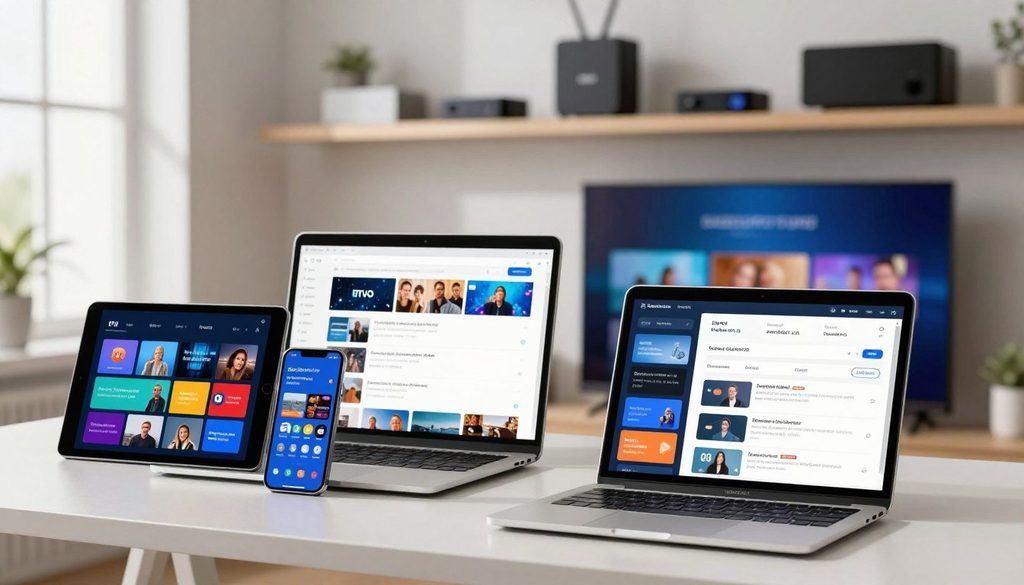
Subscription terms showing device and stream limits
Price depends on the package and its permitted features. A higher price does not by itself show how many screens may play content at once, so the terms matter as much as the package name.
Before paying, the household can use these five questions to review the offer:
- How many devices may be registered?
- How many screens may stream at once?
- Are additional connections offered?
- Is use outside the household allowed?
- What happens when the connection cap is reached?
Use outside the household depends on the provider’s terms. Some services may set rules for account sharing or use on a separate network, so the account owner should understand the stated conditions.
Keep the provider’s written connection conditions with the account details so the household can check them later.
Choose a Connection Count That Fits the Household
A solo viewer who watches on one screen at a time needs one active stream, even if they switch between devices. Viewing habits, not device ownership, set the useful number.
Two simultaneous streams cover two screens playing different content, and three cover three screens, if the package permits them. A person using a phone in the morning and a television at night may still need only one stream.
One Viewer or One Shared Screen
One viewer who watches on a single screen at a time can move from a tablet to a living room television without needing another active stream. Owning many devices does not automatically increase the connection count.
A shared screen can also suit people who watch together. If everyone uses the same television, extra simultaneous streams may add little value.
Separate Viewing for Couples and Families
A couple watching different programs on separate screens at once needs two active streams. The same applies when one person watches on a phone while another uses the television.
A family with three screens in use together needs three active streams for that moment. The package must allow that number for all three screens to play different content.
Paying for extra streams may not help when the household usually watches one screen. The right count comes from the busiest realistic viewing time, not a rare exception.
Choose the smallest permitted connection count that still covers the household’s busiest realistic viewing moment.
How Much Internet Do Multiple Streams Need?
Estimate internet demand by adding the needs of the streams likely to run at the same time. Combined demand matters because each active screen uses part of the home connection.
As a general rule of thumb, one HD stream often needs about 5-8 Mbps, while one 4K stream often needs about 15-25 Mbps. These are broad estimates, not ChromaIPTV requirements.
Estimate Bandwidth for Each Active Stream
Two HD streams may need about 10-16 Mbps together before other home activity is counted. A mix of HD and 4K adds the estimated needs of both streams.
Actual demand changes with bitrate, resolution, other network use, and equipment. A video call, game download, or cloud backup can compete with television playback.
Reduce Wi-Fi and Home-Network Bottlenecks
Weak Wi-Fi coverage can reduce playback quality in rooms far from the router. Walls and distance can affect the signal, even when the broadband plan has enough capacity.
Connection technology and home equipment also shape results. Older routers or devices may not handle the same traffic as newer equipment, and busy networks can cause buffering.
Ethernet gives a stationary device a wired connection, which can avoid some Wi-Fi problems. A television or set-top box that stays in one place may be a good fit for a cable.
Test from the room and device where viewing usually happens, since a speed result beside the router may not reflect the screen’s connection.
Compare NBN Speed Tiers for IPTV in Australia
NBN 50 typically delivers about 40-50 Mbps during the evening busy period, while NBN 100 typically delivers about 75-100 Mbps. Typical evening speeds describe performance from 7 pm to 11 pm.
NBN 25 plans typically deliver about 20-25 Mbps download speed in the evening. These figures help compare plans, but they do not guarantee the speed at every home.
| NBN plan | Typical evening download speed | How to interpret it |
| NBN 25 | About 20-25 Mbps | Lower typical speed for household use |
| NBN 50 | About 40-50 Mbps | Higher typical speed than NBN 25 |
| NBN 100 | About 75-100 Mbps | Higher typical speed than NBN 50 |
An NBN speed tier describes the maximum broadband speed linked to a plan. Evening performance may be lower because of network traffic, connection technology, and equipment.
The same tier can perform differently across homes. The connection type serving the address and the equipment in use affect the result, especially during busy periods.
Compare the plan’s typical evening speed with the household’s combined stream demand, rather than relying on its maximum tier label.
Estimate Data Use on Phones and 4K Screens
Resolution and viewing time determine data use more directly than the number of apps installed. Data use is the amount transferred, while internet speed measures how quickly data can move.
Video streaming typically uses about 0.7-1 GB per hour in SD, 1.5-3 GB per hour in HD, and 7-10 GB or more per hour in 4K/UHD. Actual use varies with resolution and bitrate.
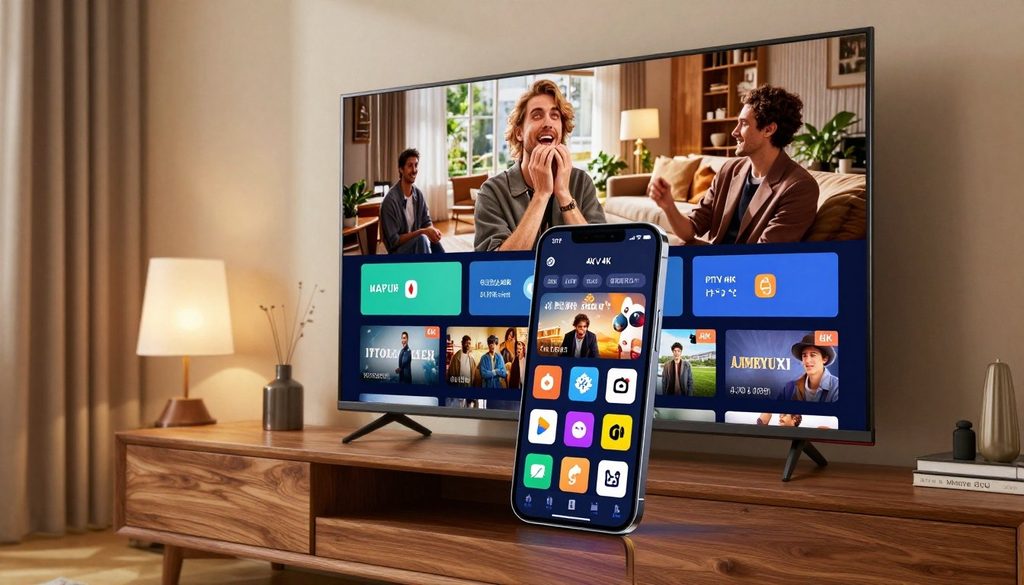
Phone and 4K screen using internet data for video
Longer viewing adds more data. Two screens playing for the same period also use more total data than one screen, with the total depending on each stream’s quality.
A phone connected to mobile data may draw from a separate allowance than home broadband. A capped home plan can also run low if several screens stream often.
Check the mobile or home broadband allowance against the household’s usual viewing time. A high-speed connection does not mean the plan includes unlimited data.
Check the data allowance before using a mobile connection for long viewing sessions, especially at 4K/UHD.
Protect Accounts and Download Media Players Safely
For an Android APK, use an official app store or the provider’s official website rather than an unknown download host. Trusted downloads reduce the risk of installing a harmful file.
A media player is separate from the content service, and installing an app does not prove that streamed content is authorized. The player loads and plays content; the service supplies access to that content.
Use the provider’s official instructions for both installation and account details. A login page or app that differs from those instructions deserves a closer look.
- Use an official app store or the provider’s official website for an APK.
- Confirm the app name and publisher before installing.
- Enter credentials only in the intended player.
- Keep login details private and away from shared screens.
These steps help protect the account across the devices that use it. They do not establish whether a service has the rights to the programs it offers.
If an installation request or login prompt does not match the provider’s instructions, stop and confirm the details before proceeding.
Is IPTV Lawful in Australia?
IPTV is a way to deliver television over the internet, not a guarantee that every stream is authorized. Content rights determine whether a service may distribute the programs it offers.
Internet delivery by itself does not decide whether an IPTV service is lawful. Under Australia’s Copyright Act 1968 (Cth), authorization to distribute streamed content is the key issue.
A media player can play a stream, but the app alone does not show that the service holds distribution rights. The service’s own claims should explain which content it can provide.
A player’s ability to open a stream is not proof that the service has permission to distribute its content.
Before paying, readers can look for clear information about the service’s rights to its programs. Vague claims about access do not explain who authorized the content or its distribution.
Check the service’s content-distribution rights before paying for access.
Conclusion
A suitable multi-screen setup matches the household’s real viewing pattern without assuming that app installation means simultaneous access. The best package is one whose permitted streams fit actual use and whose content rights can be checked.
A family that watches on separate screens needs enough allowed streams for its busiest normal viewing time. Extra devices matter less when people use them at different times.
Confirm ChromaIPTV’s current device support, connection terms and content authorization before choosing a subscription.
FAQ
Can a phone and a television use one IPTV subscription at the same time?
Yes, if the service permits at least two simultaneous streams and supports both devices. A phone and television can then play different content at once within the subscription’s terms. If the account allows only one active stream, one screen may need to stop before the other starts. Device support and stream limits are separate checks.
Does casting to Chromecast or AirPlay use another connection?
It depends on whether the app casts playback or mirrors the phone’s screen, and on how the service counts streams. Casting may direct playback to the receiving device, while mirroring may display the phone’s screen there. The provider’s rules determine whether either method counts as another active stream. Test the exact method used at home.
Can IPTV work over mobile data in Australia?
Yes, IPTV can work over mobile data when the device and service support it. Data use can reach 7-10 GB or more per hour for 4K/UHD viewing. A mobile plan’s allowance may run out during long sessions, especially when several screens share a hotspot. Lowering video quality can reduce data use.
Why can an NBN plan feel slower during evening viewing?
Evening performance can fall below a plan’s maximum because network traffic and connection technology affect actual speeds. Typical evening speeds cover the busy period from 7 pm to 11 pm. Home equipment and other devices using the network can also affect playback. A speed test near the viewing screen gives a more useful local result.
Do users need a separate media player on every device?
Each screen needs a compatible way to play the service, such as a supported app or built-in player. Some televisions may have a player available through their system, while other devices need an app installed. The service’s playback instructions matter as well. Having a player on each screen does not set how many streams the account permits.
Does installing an IPTV app mean its channels are legal?
No, installing an IPTV app does not show that the channels are authorized. IPTV is a delivery method, and the service needs rights to distribute the content it streams under Australia’s Copyright Act 1968 (Cth). A player can load content without confirming those rights. Check whether the service can explain its authorization before paying for access.

