 Skip to content

For a Norwegian household, IPTV for Smart TV means configuring a compatible player with an authorized service playlist. The player can run on the TV or through a MAG Box. A stable home connection and authorized content matter for smooth streaming.
An M3U playlist is a file or URL that tells a compatible player where to find channel streams and how to organize them. The right setup depends on the TV, receiver, or HDMI source the household plans to use.
This ChromaIPTV installation guide explains playlist basics and setup choices for each device. It also covers what to check before starting a free IPTV trial, since current availability and terms can change. The HDMI-to-IPTV guidance covers a separate way to send local video across a network.
A stable home connection and a playlist that works with the chosen player are the two essentials to check before setup.
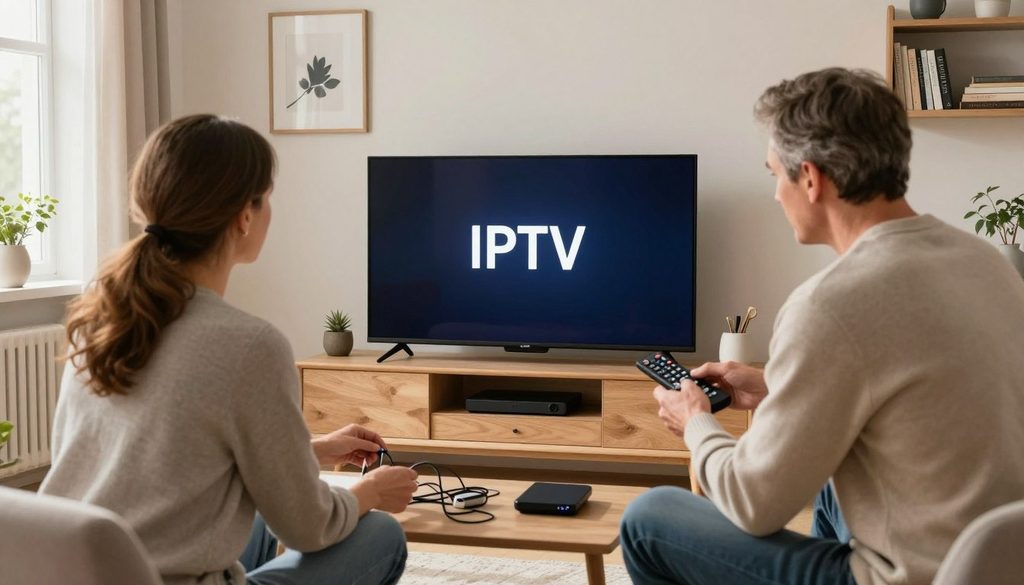
IPTV for Smart TV
Key Takeaways
- Use an authorized service and compatible player.
- Check the exact TV model before choosing an app.
- Confirm current trial terms before activation.
- Use a MAG Box when a separate receiver suits the setup.
- Use an HDMI encoder only to share a local HDMI source.
Norway’s Internet Speeds for IPTV Viewing
Norway’s fixed broadband availability is high, but the speed measured beside the television is the practical test for a household. A stable connection supports streaming, while weak Wi-Fi can interrupt channels even when the media service works well.
At the end of 2025, 99.3% of Norwegian households had access to internet services offering at least 100 Mbit/s download speeds. Coverage for at least 1000 Mbit/s reached 96.3%. In 2026, average fixed internet speeds were 173 Mbit/s down and 149 Mbit/s up.
National coverage does not guarantee a steady signal beside the TV; test the connection where viewing happens.
At the end of 2025, estimated household coverage reached 100% for 4G and 99.8% for 5G. Those figures describe availability, not the quality of one home’s Wi-Fi or mobile signal.
Router placement, walls, and other household use can affect playback. A laptop downloading large files may compete with a video stream, even on a fast plan.
Three quick checks can help isolate the cause:
- Run a speed test near the TV.
- Compare Wi-Fi with an Ethernet connection.
- Pause other heavy downloads during the test.
If a wired test is steady while Wi-Fi drops, address the home wireless connection before changing IPTV settings.
Which IPTV for Smart TV Setup Fits a Norwegian Home?
A compatible TV app suits households that want fewer devices, while a MAG Box suits viewers who prefer a separate IPTV receiver. The best fit depends on TV support and preferred controls, not just the size of the channel list.
Check the TV’s exact model and operating system before relying on an app. App access can differ across Samsung, LG, Philips, Sony, and TCL models.
Using an App on the Smart TV
A TV app keeps the player on the television, so fewer separate components are needed. A smart iptv app still needs to support the service’s login or playlist method. Its controls and features depend on the app and TV system.
Using a MAG Box with the Television
A MAG Box is a separate receiver connected to the television. It can suit viewers who want dedicated IPTV controls or whose TV does not support a suitable app. The box uses a network connection to reach the service.
| Setup | Where the player runs | How it connects | Best fit |
| Smart TV app | TV | Installed on compatible TV | Fewest separate components |
| MAG Box | External receiver | Box connected to TV | Dedicated IPTV controls |
| Either option | Compatible player | Playlist loaded in player | Choice depends on TV support and preference |
A short setup checklist can prevent a poor match:
- Confirm the TV model and operating system.
- Check whether the app is available for that model.
- Confirm the player accepts the service credentials.
- Place the TV or receiver within reliable network reach.
Check the exact TV model’s app compatibility before choosing an app-only setup.
Playlist Formats, Apps, and What They Provide
A playlist is the connection information a compatible player uses to organize and open the streams a user is entitled to watch. The app does not supply channels, movies, or series by itself. Users need an authorized playlist or service.
An M3U playlist can be a web link or a local file. Some players also accept M3U8 links, direct stream URLs, or Xtream Codes login details. The service and player must support the same input method.
| Input | What the user supplies | Where it is stored | Check before use |
| M3U or M3U8 URL | Playlist link | Online | Player accepts the format |
| M3U file | Downloaded playlist file | On the device | File is current |
| Direct stream URL | Single stream link | Entered in the player | Player supports direct links |
| Xtream Codes | Username and password | Entered in the compatible player | Credentials are correct |
Playlists may sort content by category or country, helping users find channels from around the world. Features such as EPG, favorites, and parental PIN controls depend on player support.
Catch-up and time shift also need player support and available stream data. Those tools cannot add replay or program details that the stream does not provide.
Ads shown by a player are separate from the service’s content. A free app may include ads even when the playlist itself does not.
Confirm the playlist format and login method with the provider before entering credentials.
What to Check Before Starting a ChromaIPTV Free IPTV Trial
A free IPTV trial is useful only when its availability, access period, and included features are confirmed before activation. ChromaIPTV is the service brand to check for current trial access and terms. Do not assume a trial is available or includes every channel.
Trial access should be tested on the device and endpoint the household plans to use, such as a Smart TV app or MAG Box. This can reveal playback or navigation issues before a plan is chosen.
Before activation, users can check these five points:
- Verify whether a trial is currently available.
- Confirm its length and expiry date.
- Check the channels and content categories wanted.
- Test playback on the intended device.
- Review renewal and cancellation terms before selecting a plan.
Use the test to assess picture stability and menu navigation. Trial access may have limits on channels, features, or devices, and it may not include every service option.
Ads may come from a player or service interface, so users should note where they appear during testing. That detail can help distinguish app behavior from the content being watched.
Save the exact expiry and renewal terms before starting any trial.
MAG Box IPTV Setup Guide 2026: Complete Step-by-Step Tutorial
A MAG Box setup needs a TV connection, network access, and the service details intended for that receiver. The MAG Box is a separate device, and HDMI carries its picture to the television.
Follow the model’s on-screen instructions because menus can differ across firmware versions. Keep login details private while setting up the player.
Prepare the MAG Box and Network
Start with the receiver, TV, and home network. Ethernet provides a wired connection when the box and router can be linked directly.
- Connect the MAG Box to the TV with an HDMI cable.
- Connect the box to the home network, using Ethernet where practical.
- Power on the box and complete its basic setup.
Enter the Service Details and Test Playback
Once the receiver is ready, add only the details supplied for that device. Do not guess menu labels or enter credentials from another service.
- Open the device’s IPTV or portal configuration area.
- Enter the supplied service details and save them.
- Restart or refresh the player, then test a live channel and guide if available.
If the player does not load, check that the saved details match the service instructions. Some MAG Box models may use different menu names, so the screen prompts matter more than a button guide for another version.
Test both a live channel and the program guide, if available, before relying on the setup.
How to Convert HDMI to IPTV: ChromaIPTV Setup Steps
Converting HDMI to IPTV requires an encoder that turns the source signal into a stream the receiving devices can open on the local network. This sends a local source across an IP network; it does not load a ChromaIPTV service playlist.
The basic path is HDMI source to encoder to network switch or router to compatible receiving player. Match the encoder’s output resolution and frame rate to the source for a clean picture.
For an interlaced 1080i source, deinterlace it once and send 1080p at 50 or 60 frames per second. Repeated deinterlacing can soften the video or create unwanted motion effects.
A clean 1080p H.264 stream typically uses 6 to 12 Mbps. H.265 can cut the bitrate substantially at equal quality, but the receiving player must support that codec.
In this multicast setup, each independent HDMI source needs its own encoder and stream. One encoder cannot create separate streams for several HDMI inputs.
An HDMI encoder may add 100 to 500 ms of delay, depending on codec and buffer settings. That lag can matter for live sports, game play, or audio that must match another screen.
Test audio, picture, and end-to-end delay at the receiving television before distributing the stream more widely.
Troubleshoot Buffering, Missing Channels, and Playlist Errors
A TV can browse the internet while a player still fails to load a particular playlist or channel. Check the network, player, and playlist as separate parts of the streaming path.
First, test another permitted stream or app. If other video plays, the issue may involve the player or a specific channel rather than the whole connection.
A failed M3U link can stop a player from loading its playlist, even when the TV has internet access.
Next, check the M3U link or login details for typing errors, then reload the playlists. An expired or unsupported link can leave channels missing.
If the device cannot reach the service, review its local network settings. DNS resolves domain names used by network services, while DHCP assigns local network settings to devices.
Change DNS or reset network settings carefully, since a change can affect other household devices. Record the exact error and the device and player version before asking the service provider for help.
Conclusion
A suitable IPTV setup starts with an endpoint that supports the service, plus valid access details and clear terms. An app or MAG Box can handle normal streaming, while an HDMI encoder serves a different purpose.
Households only need the encoder route when they want to distribute a separate local HDMI source over their network. It does not replace an authorized service or playlist for provider channels.
The practical next step is to confirm the device and service can work together before activation. Before activation, confirm the current ChromaIPTV service terms and test the chosen player with authorized access.
FAQ
Can a Smart TV play IPTV without a MAG Box?
Yes, a Smart TV can play IPTV without a MAG Box when it supports a compatible player app and the service’s playlist or login method. The app must work with that TV model and operating system. If the TV lacks a suitable player, a supported external receiver can provide another way to connect.
How can a user tell whether an M3U link or Xtream Codes login is required?
The service’s setup instructions identify whether it uses an M3U link or Xtream Codes login. The player must accept that same method. An M3U link points the player to a playlist, while Xtream Codes uses account credentials. Users should not try unrelated formats or share login details with others.
Does a free IPTV trial include every channel and feature?
No, a free IPTV trial may limit channels, features, devices, or access time. The exact terms can differ, so users should check what is included and when access ends before activation. Testing the intended TV app or receiver can show whether the available content and controls suit the household.
Can one HDMI encoder distribute multiple HDMI sources?
No, in the described multicast setup, each HDMI source needs its own encoder and stream. Each encoder turns one source signal into a network stream for compatible receiving devices. This keeps separate inputs independent, but it also means adding another source requires another encoder.
Why does a playlist fail when the TV internet connection works?
A playlist may fail because its link or credentials are invalid, expired, entered incorrectly, or unsupported by the player. General internet access only shows that the TV can reach some online services. It does not confirm that a specific playlist address works or that the player can read its format.
How much delay can an HDMI encoder add?
An HDMI encoder may add 100 to 500 ms of delay. Codec choice and buffer settings affect the actual latency. This delay can be noticeable when the stream is compared with a nearby live screen, especially during sports or game play. Testing the receiving television helps reveal whether the delay is acceptable.

