
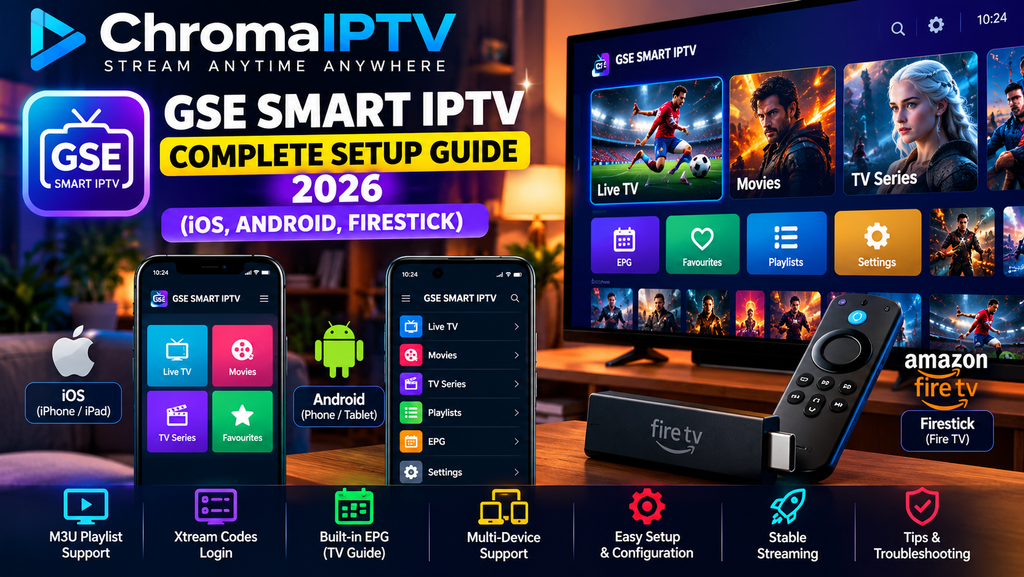
GSE Smart IPTV is an IPTV player designed to help users organize and stream compatible playlists on supported devices. It can work with playlist formats such as M3U and, depending on the app version, Xtream Codes credentials. Its available features and compatibility may vary by platform.
In this comprehensive guide, you will learn how to install GSE Smart IPTV, configure a playlist, organize channels, understand the electronic program guide (EPG), improve playback performance, and troubleshoot common streaming problems.
Whether you use an iPhone, iPad, Android phone, tablet, or compatible television device, the goal is to make the setup process straightforward and easy to follow.
What Is GSE Smart IPTV?
GSE Smart IPTV is a media player that allows users to access compatible IPTV playlists through a supported interface. Rather than providing television channels itself, the application uses playlist information supplied by the user or an authorized service provider.
This distinction is important: the player and the streaming content are separate. The availability of channels, movies, television programmes, and catch-up content depends on the playlist and the rights held by its provider.
Key Features to Understand
Depending on the version and device, GSE Smart IPTV may offer features such as:
- M3U playlist support: Load compatible playlists containing streaming links.
- EPG integration: View programme information when compatible guide data is available.
- Channel organization: Browse channels and categories provided by the playlist.
- Playlist management: Add, update, or remove playlist entries.
- Playback controls: Use supported playback options to manage viewing.
- External player compatibility: Some versions may support alternative playback engines.
- Multi-device options: Availability differs between iOS, Android, and television platforms.
Before installing the application, check the current app listing and supported features for your device.
What You Need Before Getting Started
Preparing a few things in advance can make the installation and configuration process easier.
1. A Compatible Device
Choose the device you plan to use. The installation procedure differs between mobile devices and television streaming hardware.
2. A Stable Internet Connection
A reliable internet connection helps reduce interruptions and loading delays. Actual requirements depend on the video resolution, streaming format, network conditions, and provider infrastructure.
3. A Compatible IPTV Playlist
You will need a valid playlist or login details from a service that you are authorized to access. Depending on the provider and application version, these may include an M3U URL, an EPG URL, or supported account credentials.
Never share your password or private playlist URL publicly.
4. The Appropriate Application Version
Download the application from an official or trusted source whenever possible. Confirm that the version is compatible with your operating system before proceeding.
How to Install GSE Smart IPTV on iPhone or iPad
The following steps describe the general installation process for iOS devices.
Step 1: Open the App Store
Unlock your iPhone or iPad and open the Apple App Store.
Step 2: Search for GSE Smart IPTV
Enter the application’s name in the search field. Check the developer information and app details to make sure you have selected the intended application.
Step 3: Install the Application
If a compatible version is available for your device and region, select the installation option and wait for the download to finish.
Step 4: Launch the App
Open GSE Smart IPTV and review any initial setup instructions or permission requests. Grant only the permissions necessary for the features you intend to use.
Step 5: Prepare Your Playlist
Once the application is ready, locate its playlist management section. The exact menu names can differ between versions.
You can then proceed to add a compatible playlist using the instructions below.
How to Install GSE Smart IPTV on Android
Android users should follow a similar process, although the available options may differ depending on the device and operating system version.
Step 1: Open Google Play
Launch the Google Play Store on your Android phone or tablet.
Step 2: Search for the Application
Search for GSE Smart IPTV and examine the listing carefully. Check its compatibility, developer information, and recent updates.
Step 3: Download and Install
If the application is available for your device, select Install and allow the download to complete.
Step 4: Open the Application
Launch the app and locate the playlist configuration or media settings section.
Step 5: Check Permissions
Allow only the permissions needed for the application’s functionality. If a playlist is stored in a file, you may need to grant access to the relevant file or folder.
Important: Avoid downloading APK files from unknown websites. Unofficial installation files may be modified, outdated, or unsafe.
Can You Install GSE Smart IPTV on Amazon Fire TV or Firestick?
Compatibility on Amazon Fire TV devices requires special attention. An application that works on Android phones is not necessarily available for Fire TV, even if both platforms use Android-based technology.
Before attempting installation, check whether the current application version officially supports your specific Fire TV device.
Step 1: Search the Amazon Appstore
From the Fire TV home screen, open the application search function and search for GSE Smart IPTV.
If a compatible official listing appears, follow the on-screen installation instructions.
Step 2: Check Alternative Supported Players
If GSE Smart IPTV is not available for your device, consider another compatible player from the official Amazon Appstore. Check its supported playlist formats and features before choosing it.
Step 3: Avoid Unverified Installation Files
If you are considering sideloading an application, use only a trustworthy source and verify that the app is intended for your device. Installing software from unknown sources can expose your device to security risks.
The precise Fire TV installation process may change with device software updates, so consult the manufacturer’s current instructions when necessary.
How to Add an IPTV Playlist to GSE Smart IPTV
After installation, the next step is to configure a playlist. You must obtain the playlist or credentials from a provider authorized to distribute the content.
The available menu names and login methods depend on the application version.
Method 1: Add an M3U Playlist
An M3U playlist contains references to media streams and may include channel names and categories.
- Open GSE Smart IPTV.
- Locate the playlist management section.
- Select the option to add a playlist or remote playlist, if available.
- Enter the playlist URL supplied by your authorized provider, or import the supported playlist file.
- Give the playlist a recognizable name.
- Save the configuration and allow the application to process the playlist.
- Open the resulting channel list and check whether the entries load correctly.
If the playlist fails to load, verify that the URL is correct and that the playlist has not expired.
Method 2: Use Supported Login Credentials
Some IPTV applications support account-based connections, including Xtream Codes-compatible login details. Availability depends on the app version.
If this method is supported:
- Open the application’s connection or login section.
- Select the appropriate supported login method.
- Enter the server address provided by your authorized service.
- Enter the username and password exactly as supplied.
- Save the connection.
- Wait for the application to retrieve the available playlist information.
Do not add extra spaces to the credentials. If authentication fails, confirm the server address and account status with your provider.
Method 3: Configure Electronic Programme Guide Data
An electronic programme guide, or EPG, displays information about scheduled programmes.
If your provider supplies compatible EPG data and the application supports it:
- Open the EPG or guide settings.
- Enter the guide URL or import the supported guide file.
- Associate the guide with the relevant playlist when required.
- Refresh the guide data.
- Check whether programme titles and schedules appear correctly.
An EPG is separate from the video stream. A channel can play successfully even when its programme information is missing.
Navigating GSE Smart IPTV
Once the playlist has loaded, take some time to learn the main sections of the interface.
Channel List
The channel list displays the entries included in your playlist. Depending on how the provider organized its data, channels may appear in categories.
Use the available search function, if present, to find a particular channel more quickly.
Programme Guide
The EPG provides programme schedules when valid guide information is available. Select a programme to view additional details if the application supports that function.
Guide accuracy depends on the source data and its update frequency.
Favourites
If the application supports favourites, add frequently watched channels to a dedicated list. This can make navigation easier when a playlist contains many entries.
Playlist Management
Keep your playlists organized by giving them clear names. Remove outdated entries when they are no longer needed, and refresh the playlist if your provider updates its content.
How to Improve Streaming Performance
A properly configured player can still experience interruptions because streaming quality depends on several factors, including internet connectivity, server performance, device limitations, and the selected video quality.
Use the following checks to identify common problems.
1. Test Your Internet Connection
Run a speed test and check whether other applications are using substantial bandwidth. A stable connection matters as much as the advertised maximum speed.
For high-resolution video, your connection should comfortably meet the stream’s requirements. Other users and devices sharing the network can affect performance.
2. Compare Wi-Fi and Ethernet
If your device supports Ethernet, test a wired connection. It can provide more consistent connectivity than a weak or congested Wi-Fi signal.
For Wi-Fi, try moving closer to the router or selecting a less congested wireless band.
3. Choose an Appropriate Video Quality
If a stream repeatedly buffers, try a lower resolution when an alternative is available. This can help distinguish a bandwidth limitation from another playback problem.
4. Restart the Application
Close the player completely, reopen it, and try the stream again. If the problem continues, restart the device.
5. Update the Application
Check whether an official update is available. Updates may address compatibility issues, security problems, or playback bugs.
6. Check the Streaming Source
If only one channel or playlist entry fails, the problem may be with that particular stream rather than the application or your internet connection.
Test another authorized stream and contact your provider if the issue appears to be source-specific.
Troubleshooting Common GSE Smart IPTV Problems
Channels Are Not Loading
If channels do not appear or fail to play, work through these checks:
- Confirm that your internet connection is working.
- Verify the playlist URL or login credentials.
- Check whether your subscription or account is still active.
- Refresh the playlist if the application provides that option.
- Test another channel to determine whether the problem affects the entire playlist.
If none of these steps works, ask your provider whether the server or playlist has changed.
Buffering or Frequent Interruptions
Buffering can have several causes. The most useful troubleshooting steps are:
- Test the internet connection on the same device.
- Try a different network connection if available.
- Lower the stream quality when possible.
- Close applications that are consuming bandwidth.
- Restart your router if other devices also experience connection problems.
- Check whether the same stream fails on another compatible device.
A VPN is not a universal solution to buffering. It may affect routing and privacy, but it can also reduce performance. Use one only when appropriate for your privacy needs and local rules.
The EPG Is Empty or Incorrect
If programme information is missing, check that the guide URL is correct and that the provider supplies compatible EPG data.
Refresh the guide if the application offers that feature. Also check whether the playlist and guide use compatible channel identifiers.
If the guide remains inaccurate, contact the source of the EPG data.
Login Errors
Authentication failures commonly occur when the server address, username, or password is incorrect or when account access has expired.
Copy the credentials carefully, check for accidental spaces, and confirm the account status with the provider. Never post your credentials in a public support forum.
The Application Crashes
If the application repeatedly closes unexpectedly:
- Restart your device.
- Install available official updates.
- Check that your device has sufficient free storage.
- Close other applications to free up resources.
- Review the application’s support documentation.
Before deleting the application or clearing its data, check whether your playlist settings can be restored. Removing local data may erase saved configuration details.
GSE Smart IPTV Compared With Other Players
Different IPTV players suit different devices and preferences. No single application is necessarily best for everyone.
| Player | What to consider |
| GSE Smart IPTV | Check current platform support, playlist compatibility, and available features. |
| IPTV Smarters Pro | Consider its supported login methods, interface, and device compatibility. |
| TiviMate | Review its current Android TV and compatible television-device support. |
| VLC Media Player | A general media player that can handle certain supported network streams and playlist formats. |
Compare each application’s current features, privacy information, pricing where applicable, and official distribution channels before choosing one.
Remember that a player does not automatically include a legal subscription or access to copyrighted television content.
Using ChromaIPTV With a Compatible Player
If you use ChromaIPTV, first confirm that the service provides a playlist or connection method compatible with your chosen application and that the content is authorized for distribution in your location.
The general configuration process is:
- Obtain the correct connection details from your service provider.
- Install a compatible player from a trusted source.
- Add the playlist or account details using the supported method.
- Check that channels and programme information load correctly.
- Test playback on your intended device and network.
- Contact the provider if the connection fails or the supplied details do not work.
Do not assume that every player supports every connection method. Confirm compatibility before attempting to configure an account.
Security and Privacy Tips
A good setup should be reliable as well as secure.
- Download applications from official or trusted sources.
- Avoid unknown APK files and suspicious download links.
- Keep your device’s operating system and applications updated.
- Do not publish playlist URLs, passwords, or account credentials.
- Review the permissions requested by each application.
- Check the provider’s privacy policy and subscription terms.
- Use services that have the necessary rights to distribute their content in your region.
These precautions help reduce avoidable security and account problems.
Frequently Asked Questions
Is GSE Smart IPTV a streaming service?
GSE Smart IPTV is a player, not a guarantee of access to a particular collection of channels. The content available depends on the playlist and the rights held by its provider.
Does GSE Smart IPTV support M3U playlists?
Support for M3U playlists is associated with GSE Smart IPTV, but the precise import options and supported formats should be confirmed for the current version installed on your device.
Can I use GSE Smart IPTV on an iPhone?
Check the current Apple App Store listing for availability and compatibility in your region. Installation and supported features may change over time.
Can I use GSE Smart IPTV on Firestick?
Do not assume that every Android application is compatible with Fire TV. Check the Amazon Appstore and the application’s official compatibility information before installing it.
Why is my playlist not working?
Common causes include an incorrect URL, expired credentials, a network problem, unsupported playlist formatting, or an unavailable stream. Verify the connection details and test more than one entry.
Why is my programme guide missing?
The EPG may be missing, outdated, incorrectly configured, or incompatible with the playlist. Confirm the guide source and refresh it if supported.
Do I need a subscription to use an IPTV player?
The player and content access are separate. Some media players are free or offer optional paid features, while access to particular streaming content may require a separate authorized subscription.
Can I use the same playlist on multiple devices?
That depends on the provider’s terms, account limits, playlist format, and the compatibility of each device. Check the applicable terms before using the same account across devices.
Conclusion
GSE Smart IPTV can help users organize compatible streaming playlists, but the installation and configuration process depends on the device, application version, and playlist format.
Start by confirming that the application supports your device. Install it from a trusted source, add a valid playlist, configure EPG data when available, and test playback before changing advanced settings.
If you experience buffering or missing channels, troubleshoot the network, credentials, playlist, and streaming source separately. This systematic approach makes it easier to identify the cause and avoid unnecessary changes.
Finally, choose a compatible player and a provider that is authorized to distribute the content you want to watch. A reliable setup begins with the right application, accurate connection details, and a stable network.

