 Skip to content

IPTV works on Android TV and Google TV when a compatible player is connected to a provider’s playlist. An IPTV player is an app that loads a provider’s playlist and organizes and plays its streams. Installing the player does not provide channels; the provider’s playlist carries the service’s channel and program data. For ChromaIPTV setup, viewers need a compatible player and the account details for their service.
This distinction matters when a viewer is choosing an app or checking a free IPTV trial. The same player can only show what the provider makes available through the playlist. A trial, when offered, can help test whether the service works on the intended TV and player. Viewers should assess that compatibility before making a subscription decision, since a working app alone does not confirm that a provider’s streams will play well.
The setup process is direct: install a compatible player, connect it to the provider’s playlist, then test a stream on the TV. The exact menus depend on whether the device uses Google TV or the classic Android TV interface. ChromaIPTV is the service context for these setup steps, not a guarantee of any particular trial offer. Check the details before deciding whether the service and player fit the viewer’s needs.
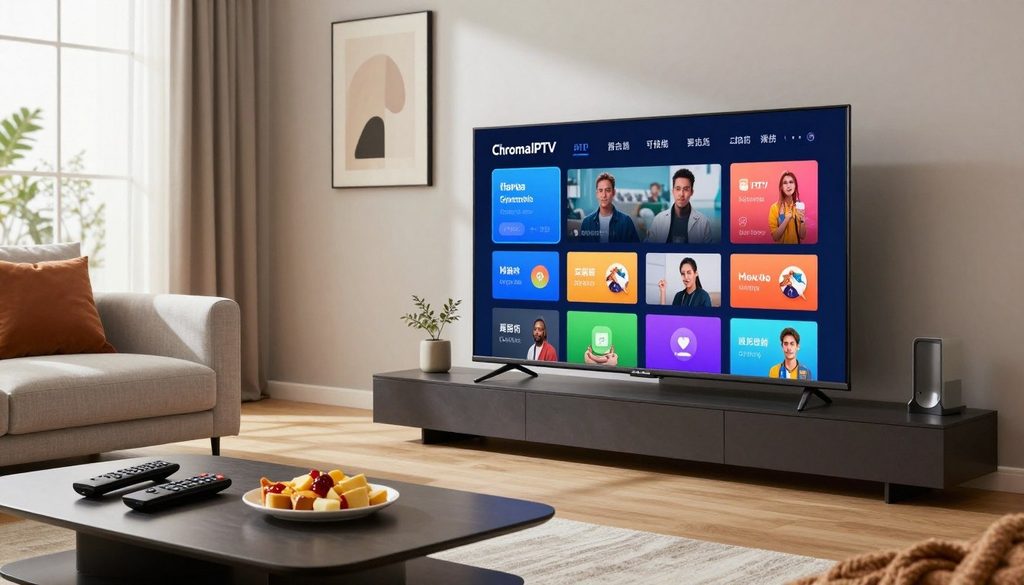
IPTV on Android TV and Google TV
A player is only the viewing tool; the playlist supplies the channels and streams.
Key Takeaways
- An IPTV player loads a provider’s playlist and plays its streams.
- Installing a player does not provide channels or program data.
- Check the player’s compatibility with the TV before setup.
- Use a free IPTV trial, if available, to test the intended device and player.
- Review ChromaIPTV account details before connecting the service.
How to Set Up IPTV on Android TV and Google TV
Before setup, the device needs internet access and a Google Account, and an external Android TV box needs an HDCP-compatible HDMI display and cable. Check these basics first, since an app cannot load a playlist if the TV cannot reach the network. Google TV and Android TV both run Android apps, though their menus and app stores appear in different places.
For HD, IPTV Smarters Pro recommends at least 10 Mbps; for 4K, it recommends at least 25 Mbps. Those figures are connection recommendations, not guarantees of smooth playback. A busy home network can affect video even when the internet connection meets the stated rate.
An external Android TV box needs an HDMI display that supports HDCP and a working HDMI cable.
Check the device, account, and network
A four-part preflight check helps catch setup gaps before a viewer opens the player. The device may be a TV with Android TV or Google TV built in, or an external box such as an NVIDIA Shield. An Android TV box connects to a separate display; it is not the same thing as a TV that runs the Google TV interface.
- Confirm that the TV or box can run the chosen player.
- Sign in with a Google Account on the Android TV device.
- Connect the device to a working Wi-Fi network.
- For an external box, connect an HDCP-compatible display with an HDMI cable.
Wi-Fi is part of Android TV setup, while the internet connection carries the streams after setup. A 5 GHz Wi-Fi network or wired Ethernet can help keep playback stable, but neither is required. The viewer can use the network option that works best for the room and device.
Match the interface to the device
Google TV is an interface layer over Android TV, so both platforms run Android apps. Google TV places its apps and menus differently from the classic Android TV home screen. Recent Google TV models are available from brands such as Sony, TCL, and Hisense, though model features can vary.
An Android TV menu may show the Play Store directly, while Google TV may put app browsing under an Apps tab. The same app name does not always mean that every TV model receives the same build. The app listing for that device is the useful check.
Connection quality can change with Wi-Fi signal strength, network traffic, and other devices using the same connection. A stream may work well at one time and stutter when the home network gets busy. That does not by itself prove that the TV or player is incompatible.
Check the device’s network connection before entering account details.
What Should Viewers Check in an IPTV Provider’s Free Trial?
A useful free IPTV trial is one that lets a viewer test the channel selection and playback on the device they plan to use. The right test uses the actual TV and player, not just a phone or computer. The player organizes and plays streams, while an IPTV provider supplies the content and login details.
A free IPTV trial can show whether a provider’s service works with the viewer’s device and chosen player. It can also reveal whether the channel list fits the household’s viewing habits. ChromaIPTV is the service name to compare with the viewer’s own account details, not a claim that a trial or specific offer is available.
Best IPTV Service 2026: How to Choose the Right IPTV Provider
Choosing the right IPTV subscription starts with the content a household expects to watch. A useful channel list should include the channels the viewer wants, along with any on-demand programs that matter. A long list alone does not show whether the service has the right mix.
Viewers can compare providers by checking the same needs against each service. They should consider whether the provider offers the programs they watch, whether its playlist works with their TV player, and whether the streams remain usable on their connection. The service name ChromaIPTV should match the account details the viewer received.
Trial terms also affect the choice. The length of access, any payment step, and the cancellation rules can differ between offers. Those details belong to the offer itself, so a viewer should read them rather than assume a standard trial arrangement.
What a free trial should test
A trial is most useful when it checks both service fit and playback. Viewers can test several channels, including the types they plan to watch most. They can also see whether a program starts promptly and continues without frequent interruption.
| Check | What to verify | Why it matters |
| Channel and on-demand selection | Desired channels and programs appear | The lineup should fit viewing needs |
| Device and player compatibility | The service loads on the chosen TV player | A working app alone does not confirm access |
| Stream reliability | Playback holds on the viewer’s connection | Channel access matters only if streams play |
| Trial terms | Duration, payment, and cancellation details | Terms shape the cost and commitment |
During the trial, a viewer can check a familiar live channel and an on-demand title, if the service includes one. That makes it easier to judge both the channel list and the player’s response. A single successful stream does not confirm that every channel or program will work the same way.
Review renewal terms as carefully as the initial offer. A payment request may have rules about renewal or cancellation that affect the decision. Read the provider’s trial and renewal terms before entering payment information.
Which IPTV Player Works With Each Playlist Type?
IPTV Smarters Pro is a practical option for Xtream Codes or M3U access, while Extreme InfiniTV accepts additional playlist and direct-link formats. The best fit depends on the connection details the provider supplies and the controls the viewer wants. Both options should be checked for availability on the specific TV device.
Choose a player by its accepted input, not by a claim that one app is best for every viewer. IPTV Smarters Pro supports Xtream Codes API login, an M3U playlist URL, and a local M3U file. Extreme InfiniTV accepts Xtream Codes credentials, M3U or M3U8 URLs, direct stream links, and playlist files.
IPTV Smarters Pro for common playlist formats
IPTV Smarters Pro suits viewers whose providers supply Xtream Codes API details or an M3U playlist. Its options include a remote M3U URL and a local M3U file. IPTV Smarters Pro does not supply the provider’s channel list or login details on its own.
A viewer should compare the format shown in the provider’s account information with the player’s supported inputs. If the provider gives Xtream Codes details, the API login route can match that information. If the provider gives an M3U address or file, the matching M3U option is the direct fit.
IPTV Smarters is also known as IPTV Smarters Pro in app listings and setup discussions. The name alone does not confirm that a TV version is available. Store listings can differ by device, Android version, and region.
Extreme InfiniTV for remote navigation and EPG controls
Extreme InfiniTV supports more input types, including M3U8 URLs and direct stream links. It also supports playlist files and Xtream Codes credentials. These added formats can help when a provider gives a connection type beyond an M3U URL.
The app includes navigation designed for a TV remote, which can make menu control easier from a couch. Its EPG, or electronic program guide, supports custom sources and channel mapping. It displays schedule times in the viewer’s local time zone.
That local-time display can be useful when the provider’s schedule data uses a different time setting. A guide still depends on usable program data and correct channel matching. More format options do not guarantee that a player suits every device or playlist.
Before choosing either app, confirm that it is available for the TV or box. Some Android apps may not offer a TV-specific build or remote-friendly controls. Choose the player whose accepted input matches the details the provider supplied.
Install an IPTV App from the Google Play Store
The Google Play Store is the simplest route when the chosen player is listed for the TV. Use the TV’s own store so the listing matches the device as closely as possible. Google TV and classic Android TV show the store and app browsing in different places.
App availability can depend on Android version, region, or a TV-specific build. A phone listing does not prove that the app can install on a television. Check the listing shown on the TV before starting the install.
- Open the TV’s store, or open the Google TV Apps tab.
- Search for the exact player name.
- Check the app listing and confirm it matches the intended player.
- Select Install, then select Open when installation finishes.
Install from Google TV
On Google TV, viewers can search for an available app, select it, and choose Install. They can also browse apps from the home screen’s Apps tab. Either route leads to the app listing, where the Install option appears if the app is available for that TV.
Installed apps work across Google TV profiles except kids’ profiles. A viewer using a kids’ profile may not see an app installed through another profile. That profile limit is separate from whether the TV supports the app.
After the app installs, Open starts it from the store listing. It may also appear among the installed apps on the home screen. The displayed path can differ slightly across TV models and software versions.
Install from the classic Android TV Play Store
On classic Android TV, open the TV’s Play Store and search for the app. Select the correct listing, choose Install, and open the app when the download finishes. The store is the official route when it offers the player for that device.
If a listing is missing, the app may not have a compatible TV build for that model or region. The version designed for a phone may not offer useful remote navigation. A missing TV listing is a compatibility clue, not a reason to install an unrelated app with a similar name.
If sideloading is necessary, use only an official APK from the app developer. The TV must grant “install unknown apps” permission to the specific installer app used to open that file. The viewer can turn that permission off after installation.
Do not use APK files from mirror sites or forum posts. Those files may not match the developer’s current build. If the app is unavailable, check for an official TV build before considering an APK.
Add IPTV Smarters Pro Login Details and Playlists
In IPTV Smarters Pro, the fastest route is usually to enter the exact connection method and details supplied by the provider. Use the matching setup option, since Xtream Codes and M3U details go into different fields. The player cannot fill in missing server or playlist information.
For Xtream Codes, enter the provider’s server URL, username, and password exactly as supplied. A server address may include a port, such as :8080, when the provider gives one. Do not add a port that does not appear in the supplied details.
| Setup method | What to enter | Accepted format | Practical check |
| Xtream Codes API | Server URL, username, password | Provider’s API details, including a supplied port | Check each field against the account details |
| M3U URL | Provider’s playlist address | URL ending in .m3u or containing get.php | Check the full address before saving |
| Local M3U file | A playlist file on the device or accessible storage | Local M3U file | Confirm the file is present and readable |
Enter Xtream Codes credentials
Choose the Xtream Codes API login option when the provider supplies that type of access. Enter the server URL in the server field, then add the username and password. If the server address includes a port, keep it attached to the address.
The username and password must match the provider’s account details, including upper- and lowercase letters when they matter. Extra spaces can cause a failed login. A viewer should not guess a missing character or replace a server address with the provider’s website homepage.
The server URL can be long and may include several marks that are hard to see on a TV screen. A phone remote app with keyboard input can make typing easier. A USB or Bluetooth keyboard can also reduce mistakes.
Add an M3U URL or local file
Select the M3U URL option when the provider supplies a playlist link. IPTV Smarters Pro accepts an address ending in .m3u or containing get.php. Enter the full URL, since a missing part can prevent the playlist from loading.
A local M3U file uses a different route from a URL. The file must be available to the device or in storage that the app can access. A web address is not a local file, even when both lead to playlist data.
After entering the details, save the playlist and let the player load its channel list. A long URL can be difficult to check with a TV remote, so a keyboard or phone input can help. Check every character in the server address and credentials before saving the playlist.
Fix IPTV Buffering and Empty EPG Data
A stuttering stream and an empty EPG usually point to different settings, so troubleshoot playback and guide data separately. Start with one symptom at a time to avoid changing unrelated options. IPTV Smarters Pro offers Hardware, Software, and Native decoder choices for stuttering video.
No decoder is always best; test the available choices against the stream that stutters. A single channel may fail while other channels work, which can help narrow the cause. EPG data has a separate path and may need a guide address or channel mapping.
Diagnose a stuttering stream
Use these checks to separate a channel problem from a player setting or connection issue:
- Test another channel in the same playlist.
- Compare playback with another decoder choice.
- Confirm the device’s internet connection is active.
- Restart the player after changing a setting.
IPTV Smarters Pro offers Hardware, Software, and Native decoder settings. Changing the decoder can help identify a playback issue, but one choice does not suit every device and stream. Change one option, then test the same channel again.
If several channels stutter, check whether the device remains connected to the internet. If only one stream fails, the issue may be limited to that channel or stream. Testing another channel first gives the viewer a useful comparison without changing the playlist.
Restart the player after a settings change so the app can apply it. If the video remains unstable, return to the setting that worked better during testing. Avoid changing several decoder or app settings at once, since that makes the result harder to judge.
Restore missing program-guide listings
An empty EPG often needs an XMLTV URL from the provider. XMLTV is a format for electronic program guide data. Add the provider’s XMLTV address in playlist settings, then refresh the EPG.
Channel names in the playlist and guide may not match exactly. If they do not, the player may fail to connect a program listing with its channel. Check the channel mapping so the right guide entry lines up with each playlist channel.
Time-zone settings can also affect how guide schedules appear. A correct guide address may still look wrong if the schedule uses a different time setting. After refreshing, compare a known program time with the listing on the TV.
If the guide remains blank after an update, confirm the XMLTV address and channel mapping with the provider.
How to Convert HDMI to IPTV: ChromaIPTV Setup Steps
An HDMI-to-IPTV conversion needs more than a cable because HDMI output and an IPTV network stream are different formats and delivery paths. An HDMI cable carries a signal to a display; it does not create a network service. IPTV delivers streams over an IP network to a compatible receiving app or system.
An HDMI adapter alone does not turn a source into an IPTV service. A conversion setup needs a compatible encoder between the HDMI source and the network, plus a receiving setup that can play the stream. ChromaIPTV is the service context for viewing, not an HDMI conversion device.
Understand the difference between HDMI and IPTV
HDMI carries audio and video from a source, such as a media device, to a screen. IPTV sends video as a stream over an IP network. The two systems use different paths, so a cable that connects a source to a television does not make that source available across a network.
To send an HDMI source over a network, the conversion chain needs four parts: an HDMI source, a compatible encoder, an IP network, and a receiving app or system. The encoder changes the source signal into a stream the receiving setup can use. Each part must support the intended signal and network method.
A simple HDMI-to-IPTV adapter cannot replace an encoder and receiver. It may connect devices or change a signal for a display, but that does not make it a complete IPTV service. The distinction is the delivery path, not the shape of the cable or connector.
Choose the correct setup for ChromaIPTV viewing
For ordinary ChromaIPTV viewing, the viewer uses a compatible player and loads the provider’s playlist. The TV or box runs the player, while the playlist connects it to the provider’s channels and streams. That viewing setup does not require an HDMI encoder.
HDMI conversion is a separate task for sending an HDMI source across a network. It is not a step in loading a provider’s playlist, and a subscription does not turn an HDMI output into an IPTV stream. ChromaIPTV should not be treated as a device for encoding or redistributing HDMI video.
Before buying conversion hardware, check that the source, encoder, network, and receiving system work together. The receiver must support the encoder’s stream, and the network must carry it to the destination. Compatibility matters at both ends, not just at the HDMI port.
Viewers who only want to watch a provider’s service can use the supported player and playlist instead. An encoder adds hardware and setup needs that ordinary playback does not require. For ordinary TV viewing, use the provider’s supported playlist and player rather than buying an encoder the setup does not require.
Check Content Rights and Protect Account Details
Before using a service, check that it has permission to distribute the channels in its lineup. A channel list alone cannot show permission, so viewers should look for clear information about the service’s rights. The provider’s brand and subscription offer do not by themselves prove authorization.
Use services that are authorized to distribute the channels they offer. Unauthorized retransmission can bring serious legal consequences for the service involved. In one U.S. case, the Eleventh Circuit affirmed a $600,000 statutory-damages award and a permanent injunction against services that retransmitted protected Arabic-language channels without permission.
Keep provider login details private, and install apps only through an official store or developer source.
Confirm the service has permission to distribute its channels
Viewers can check whether the provider explains its rights to carry the channels it lists. A service with unclear ownership or vague claims may not give viewers enough confidence to choose it. The channel names and program schedule do not prove that distribution is authorized.
The Eleventh Circuit ruling shows one outcome for services that retransmitted protected channels without permission. It is an example involving those services, not a prediction about an individual viewer. Legal questions can depend on the facts and the law that applies, so this general information is not individual legal advice.
Checking rights is separate from checking whether a stream plays. A working playlist can still come from a service that lacks permission to carry its channels. Viewers should consider both the service’s rights and the quality of its playback.
Keep login details and apps secure
A provider’s username and password can grant access to the account and playlist. Keep those details private, and do not post them in public forums or share screenshots that show the login fields. A private account is easier to protect when its details stay out of public view.
Official app stores are the safest place to get TV apps when the app is available there. If a developer provides an official APK, use the developer’s own site rather than a mirror site or forum post. Unofficial files can be altered or may not match the intended app.
Use care with the device’s settings and profile access as well. People who share a TV should avoid leaving account details visible on screen. A viewer can sign out or remove saved details when a device changes hands.
Keep the provider login private and install apps only through an official store or developer source.
Conclusion
A smooth IPTV setup starts with a compatible TV player and the correct provider playlist. Both parts are needed: the player organizes and plays the streams, while the playlist connects it to the service’s channels and program data.
The best first move is to confirm which app-store route the TV uses and gather the provider’s account details. That small check helps prevent choosing an app that the device cannot run or entering the wrong connection information. It also keeps the setup focused on the viewer’s actual TV and account.
ChromaIPTV viewers can use the same basic approach: choose a compatible player, connect the account’s playlist, and test playback. A free IPTV trial, if available, can help assess the service before a subscription decision. Check the device and account details, then install the player from the TV’s official app store.
FAQ
Do Android TV and Google TV use the same IPTV apps?
Both platforms run Android apps, but they may not offer the same IPTV apps on every TV. Availability can depend on the device, region, Android version, and whether the developer offers a TV-specific build. Google TV and classic Android TV also place their menus differently. A listing shown in the TV’s own store is the best sign that the app supports that device.
Can IPTV Smarters Pro provide channels by itself?
No, IPTV Smarters Pro is a player and needs a playlist from an IPTV provider. The app organizes and plays streams, but it does not supply the provider’s channel list or account login. The viewer must have connection details that the player accepts, such as Xtream Codes credentials or an M3U playlist. Installing the app alone does not add channels to the TV.
What internet speed is recommended for IPTV Smarters Pro?
IPTV Smarters Pro recommends at least 10 Mbps for HD and at least 25 Mbps for 4K. These are connection recommendations, not a promise that every stream will play without interruption. Network traffic and Wi-Fi signal strength can affect playback. A viewer should test the stream on the TV and connection they plan to use, since another device may have a different signal.
Can IPTV Smarters Pro use an M3U file instead of a URL?
Yes, IPTV Smarters Pro supports a local M3U file as well as an M3U URL and Xtream Codes API login. A local file must be available to the TV or storage the app can access. An M3U URL is entered as a playlist address, while Xtream Codes uses the provider’s server URL, username, and password. The viewer should choose the option that matches the provider’s details.
Why does an IPTV guide show no programs?
An IPTV guide can show no programs when its XMLTV EPG address is missing or the playlist channels do not match guide names. Ask the provider for its XMLTV URL, add it in playlist settings, and refresh the EPG. Then check channel mapping and the time-zone settings. A correct guide address may still need mapping when the channel names differ between the playlist and program data.
Does a regular HDMI cable convert a device into an IPTV source?
No, a regular HDMI cable sends audio and video to a display, but it does not create an IPTV network stream. Network delivery from an HDMI source needs a compatible encoder, an IP network, and a receiving app or system. Those parts form a separate conversion setup. Ordinary viewing through an IPTV provider uses the provider’s playlist and supported player instead.
Do installed Google TV apps appear in every profile?
Installed Google TV apps work across profiles except kids’ profiles. A viewer using a kids’ profile may not see an app installed through another profile, even when the TV supports it. That profile behavior differs from app availability in the store. The TV’s account and profile settings determine which installed apps appear to each viewer.

