
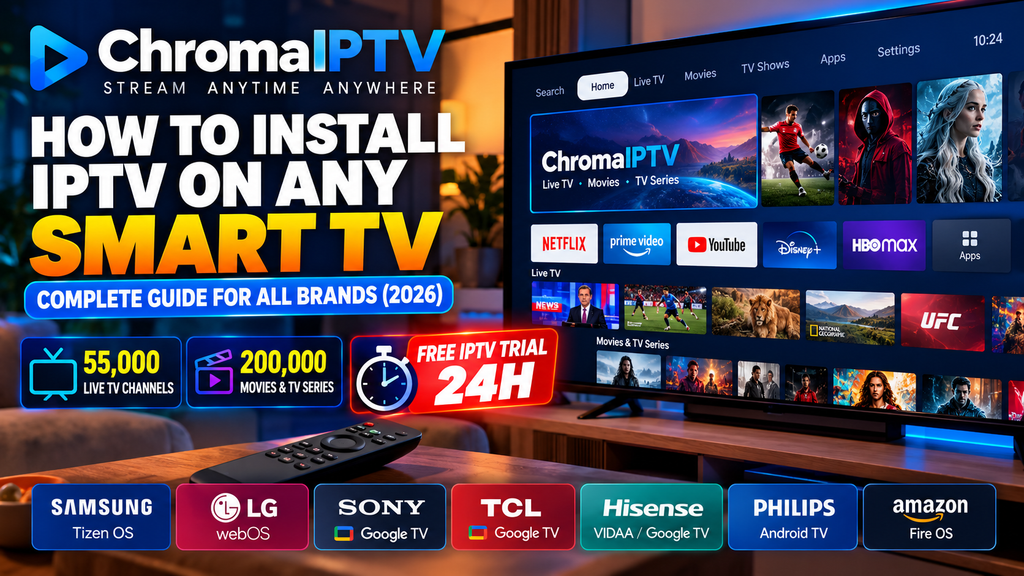
Installing IPTV on a Smart TV allows you to organize compatible television channels, movies, and TV series through an application connected to the internet. However, the installation process is not the same for every television. Samsung, LG, Sony, Philips, TCL, Hisense, and other manufacturers use different operating systems, application stores, and installation methods.
If you are looking for a practical guide on how to install IPTV on Smart TV devices, this article explains the main steps, the differences between television brands, how to configure an IPTV playlist, and how to solve common playback problems.
ChromaIPTV states that its catalogue includes 55,000 channels and 200,000 movies and TV series. If you want to explore the service before choosing a subscription, you can also check the available Free IPTV Trial 24h offer and its current conditions.
Whether you own a Samsung Smart TV, an LG television, an Android TV, or a Google TV device, this guide will help you understand the setup process and choose a compatible IPTV player.
Table of Contents
- What Is IPTV and How Does It Work?
- Can You Install IPTV on Any Smart TV?
- What You Need Before Installing IPTV
- How to Check Your Smart TV Operating System
- How to Install IPTV on Android TV and Google TV
- How to Install IPTV on Samsung Smart TV
- How to Install IPTV on LG Smart TV
- How to Install IPTV on Fire TV Edition
- How to Install IPTV on Hisense, Philips, TCL, and Other TVs
- How to Add an M3U Playlist or IPTV Account
- Best IPTV Players for Smart TVs
- ChromaIPTV: Catalogue Information and Free Trial
- How to Improve IPTV Streaming Quality
- Common IPTV Problems and Solutions
- IPTV Security and Compatibility Tips
- Frequently Asked Questions
- Conclusion
1. What Is IPTV and How Does It Work?
IPTV stands for Internet Protocol Television. It describes the delivery of television content over internet protocol networks rather than exclusively through traditional cable, satellite, or terrestrial television systems.
Depending on the service, IPTV may provide access to live television, on-demand movies, TV series, and programme schedules.
On a Smart TV, IPTV content is usually accessed through a compatible application. The application connects to a playlist or service account and organizes the available content into categories that can be navigated with the television remote.
It is important to distinguish between an IPTV player and an IPTV provider.
An IPTV player is the application used to load and play compatible streams. It may provide features such as favourites, categories, search, and an electronic programme guide.
An IPTV provider supplies the playlist, account credentials, or authorized access to the content. Some players do not include any channels or movies by themselves.
For this reason, installing an IPTV player is only one part of the setup process. You also need a compatible playlist or service account to access content.
2. Can You Install IPTV on Any Smart TV?
Many Smart TVs support IPTV applications, but the available options depend on the television’s operating system, model, region, and software version.
Different manufacturers use different platforms.
- Samsung: Usually uses Tizen OS.
- LG: Usually uses webOS.
- Sony: Many newer models use Google TV or Android TV.
- Philips: Uses different systems depending on the model and region.
- TCL: May use Google TV, Android TV, or another platform.
- Hisense: May use VIDAA, Google TV, Android TV, or another system.
- Amazon Fire TV Edition: Uses Fire TV software.
These differences matter because an application designed for Android TV may not run directly on Samsung Tizen or LG webOS.
Before downloading anything, check which operating system your television uses. This will help you avoid installing an incompatible application or following instructions intended for another device.
If your television does not support a suitable IPTV application, an external streaming device may provide an alternative, provided that the device and application are compatible with your service.
3. What You Need Before Installing IPTV
Preparing your device before installation can make the process quicker and help prevent common errors.
A Compatible Smart TV
Make sure your television supports the IPTV player you want to use. Check the model number and operating system if you are unsure.
A Stable Internet Connection
IPTV relies on network connectivity. A stable connection helps the application load playlists and stream content consistently.
The connection speed required depends on the stream resolution, the number of devices sharing your network, and the performance of the streaming service.
An IPTV Player
Choose a player available for your television’s operating system. Check its official application listing and documentation before installation.
An IPTV Playlist or Account
Depending on the service, you may need an M3U playlist URL, Xtream Codes-compatible credentials, or another supported connection method.
Your Provider’s Setup Information
Keep the official configuration instructions available. The required fields and activation process can differ between providers and players.
Your Television Remote
Most Smart TV applications can be navigated with the standard remote. Some models may also support mobile applications or other control methods.
Once these requirements are ready, you can begin the installation process.
4. How to Check Your Smart TV Operating System
The first step is identifying the operating system installed on your television.
The location of the system information menu varies by manufacturer and model, but these general instructions can help.
- Turn on your television.
- Open Settings.
- Look for System, About, Device Preferences, Support, or a similar menu.
- Check the model information and software version.
- Confirm which application store is available.
On Samsung televisions, system information is generally available through the Settings or Support menus.
On LG televisions, check the General or Support sections, depending on the webOS version.
On Android TV and Google TV devices, look under Settings and About or System.
For Hisense, TCL, Philips, and other brands, consult the television’s manual if the menu structure differs.
Once you identify the platform, follow the relevant instructions below.
5. How to Install IPTV on Android TV and Google TV
Android TV and Google TV provide access to compatible applications through Google Play, although availability can vary by model and region.
This is often one of the simplest installation methods when the IPTV player you want is available in the official application store.
Step 1: Connect Your Television to the Internet
Open the network settings and connect your television to Wi-Fi or a supported Ethernet connection.
Confirm that the connection works before continuing.
Step 2: Open the Google Play Store
From the home screen, navigate to the Apps section and open Google Play Store if it is available.
On some Google TV devices, the application search function is integrated directly into the home screen.
Step 3: Search for a Compatible IPTV Player
Search for an IPTV player that supports your television and the playlist format provided by your service.
Before installing it, review the developer information, compatibility requirements, and available features.
Step 4: Install the Application
Select the application and choose Install.
Wait for the download to finish, then open the player.
Step 5: Add Your Playlist
Depending on the application, choose an option such as Add Playlist, Add User, or Connect Account.
Enter the required details supplied by your provider. This may include an M3U playlist URL or Xtream Codes-compatible credentials.
Step 6: Load and Test the Content
Confirm the configuration and allow the player to load the available categories.
Test a stream you are authorized to access. If the player cannot connect, verify the credentials and playlist format before changing other settings.
What If the Application Is Not Available?
Not every application is listed in Google Play in every region.
Check the developer’s official documentation for supported devices and installation options. Avoid downloading application packages from unknown websites or installing software that does not support your television.
6. How to Install IPTV on Samsung Smart TV
Samsung Smart TVs generally use Tizen OS, which has its own application ecosystem.
Android APK files cannot normally be installed directly on a Samsung Tizen television. Instead, look for an IPTV player that explicitly supports your model and is available through the Samsung application store.
Step 1: Connect Your Samsung TV to the Internet
Open the television’s network settings and connect to your Wi-Fi network or a supported wired connection.
Step 2: Open the Apps Section
Press the Home button on your remote.
Navigate to Apps or the application store available on your television.
The exact interface may differ depending on the Tizen version and model.
Step 3: Search for an IPTV Player
Use the search function to find a compatible IPTV application.
Review the listing and make sure it supports your television’s operating system.
Application availability may vary by model, country, and software version.
Step 4: Install the Application
Select the application and choose Install if the option is available.
After installation, open the player from the Apps section.
Step 5: Configure Your IPTV Account
Follow the player’s setup instructions.
Depending on the application, you may need to enter an M3U URL, use an activation code, or connect through a supported account configuration method.
Some applications require playlist configuration through a companion website or mobile device. If this is the case, use the developer’s official instructions and confirm the correct activation process.
Step 6: Test the Playlist
Save your settings and allow the application to process the playlist.
If content does not appear, check that the playlist format is supported and that your service account is active.
What If Your Preferred Application Is Missing?
Check the Samsung Apps store and the application’s official compatibility information.
If no suitable application is available, you can consider a compatible external streaming device connected through HDMI.
This approach may provide access to a wider selection of players without requiring the television itself to support the application.
7. How to Install IPTV on LG Smart TV
LG Smart TVs generally use webOS, which has its own application store known as the LG Content Store or its equivalent in newer software versions.
As with Samsung televisions, Android applications are not normally installed directly on LG webOS devices.
Step 1: Connect Your LG TV
Open the network settings and connect the television to your internet connection.
Test the connection before installing an application.
Step 2: Open the LG Application Store
Press Home on the remote.
Open the LG Content Store or the application marketplace available on your model.
Step 3: Find a Compatible IPTV Player
Search for an IPTV player supported by your LG television.
Check the application description and supported webOS versions before proceeding.
Step 4: Install the Application
Select the compatible application and install it if available.
Wait for the installation to finish before opening the player.
Step 5: Add Your Playlist
Follow the player’s configuration instructions.
Some players allow you to enter playlist details directly on the television. Others may require you to use an activation code or a supported configuration page.
Enter the information supplied by your provider and save the settings.
Step 6: Test Playback
Open the playlist and test an available stream.
If the application cannot load the content, verify the playlist information and check whether the service supports your particular player.
What If the IPTV Player Is Not Available?
Application availability varies by television model, webOS version, and region.
If a compatible player is unavailable, an external streaming device may be an alternative. You can also check whether your television supports casting from a compatible mobile application.
Casting support depends on the device, application, and television.
8. How to Install IPTV on Fire TV Edition
Some televisions include Amazon Fire TV software rather than using a conventional Smart TV operating system.
These devices have a different application ecosystem from Samsung Tizen and LG webOS.
Step 1: Open the Fire TV Home Screen
Turn on the television and confirm that it is connected to the internet.
Step 2: Search for an IPTV Player
Use the search function to locate a compatible application.
If the player is available in the Amazon Appstore, select it and install it.
Step 3: Open the Player
Launch the application and locate the playlist or account configuration section.
Step 4: Add Your Service Details
Enter the M3U URL or other supported credentials supplied by your provider.
Follow the application’s instructions to complete the setup.
Step 5: Test the Content
Wait for the playlist to load and test playback.
If the application requires an installation method outside the Amazon Appstore, consult its official documentation and consider the security implications before proceeding.
9. How to Install IPTV on Hisense, Philips, TCL, and Other TVs
These brands offer televisions with different operating systems. The correct installation method therefore depends on the exact model.
Hisense Smart TVs
Hisense televisions may use VIDAA, Google TV, Android TV, or another platform.
If your television uses VIDAA, check its application store for a compatible player. Do not assume that an Android APK will run directly on VIDAA.
For Google TV or Android TV models, follow the corresponding Google Play instructions.
Philips Smart TVs
Philips television software varies by model and market.
Some models use Android TV or Google TV, while others may use a different platform.
Identify your system before choosing a player. If the television supports Google Play, search for a compatible application there.
TCL Smart TVs
Many TCL televisions use Google TV or Android TV, but the platform depends on the model and region.
Open the application store and search for a supported IPTV player.
Follow the standard Android TV or Google TV setup process if your model uses one of those systems.
Other Smart TV Brands
For any other manufacturer, use the same basic process:
- Identify the operating system.
- Open the official application store.
- Search for a compatible IPTV player.
- Install the application.
- Add your playlist or account details.
- Test playback.
If no compatible application is available, check the manufacturer’s documentation for supported external devices and casting options.
10. How to Add an M3U Playlist or IPTV Account
After installing a player, you need a compatible playlist or account to access content.
The exact configuration method depends on the application and provider.
Method A: Add an M3U Playlist
An M3U playlist contains information used by compatible players to organize media streams.
To add one:
- Open the IPTV application.
- Select Add Playlist or the equivalent option.
- Choose the M3U or URL method.
- Enter the playlist URL supplied by your provider.
- Save the configuration.
- Wait for the playlist to load.
Some players also support local playlist files, but this depends on their features and the television’s file access capabilities.
Method B: Use Xtream Codes-Compatible Credentials
Some applications support a configuration method that uses a server address, username, and password.
If your provider supports this method:
- Open the IPTV player.
- Select the relevant login option.
- Enter the server address.
- Enter your username and password.
- Confirm the details.
- Wait for the account information to load.
Not every application supports every login method. Use the format specified by your provider.
Method C: Use an Activation Code
Some Smart TV applications provide an activation code or device identifier.
In these cases, the setup may involve opening the application’s official configuration page on another device and following the instructions.
Use only the official website associated with the application. Review any activation requirements or fees before completing the process.
Protect Your Playlist Details
Treat your playlist URL and login credentials as private information.
Avoid sharing them publicly, because anyone who obtains valid credentials may be able to access the associated service, subject to its restrictions.
11. Best IPTV Players for Smart TVs
The best IPTV player depends on the television operating system, available features, and playlist format.
Rather than choosing an application based only on popularity, verify that it supports your specific device.
IPTV Smarters
IPTV Smarters and related versions are known for interfaces that organize compatible playlists into categories such as live television and on-demand content.
Availability differs between platforms and versions. Check the official listing for your device.
TiviMate
TiviMate is designed primarily for Android TV devices.
It is often considered by users who prefer a television-focused interface and an electronic programme guide.
Confirm its current compatibility, availability, and feature requirements before installing it.
Smart IPTV
Smart IPTV is associated with certain Smart TV platforms, but availability and activation requirements may vary.
Check the official application information for your television model before proceeding.
SS IPTV
SS IPTV has been available on some Smart TV platforms, but support and availability may change over time.
Verify that the application is still supported for your specific model and region.
Other Compatible Players
Other applications may support specific platforms or playlist formats.
When comparing players, consider the following:
- Operating system compatibility.
- Supported playlist formats.
- Ease of navigation.
- Programme-guide support.
- Application updates.
- Privacy and security.
- Any activation or subscription costs.
A player should be selected according to your actual device requirements rather than a generic recommendation.
12. ChromaIPTV: Catalogue Information and Free IPTV Trial 24h
If you are researching IPTV services for your Smart TV, ChromaIPTV is an option to investigate through its official website.
ChromaIPTV states that its catalogue includes 55,000 channels and 200,000 movies and TV series.
Catalogue figures are useful for understanding how a service describes its offering, but they do not independently establish that every channel or title is available at all times or in every region.
Before selecting a service, review its current information and verify the details that matter to you.
Review the Available Content
Check which content categories are included and whether the service provides the types of streams you are looking for.
Actual availability may depend on the current offering, playlist configuration, region, and service terms.
Check Smart TV Compatibility
Confirm that your television can run a compatible IPTV player and that the player supports the playlist format supplied by the service.
Samsung Tizen, LG webOS, Android TV, Google TV, and Fire TV do not all use the same applications.
Explore the Free IPTV Trial 24h Offer
ChromaIPTV offers a Free IPTV Trial 24h option according to the service information provided.
A trial can help eligible users assess the setup process and check compatibility before deciding whether to subscribe.
To get started:
- Visit the official ChromaIPTV website.
- Locate the current trial offer.
- Review eligibility requirements and access conditions.
- Follow the instructions to request trial access.
- Obtain the appropriate playlist or account details.
- Configure a compatible IPTV player.
- Test playback on your supported device.
Check the current terms to confirm the trial duration, eligibility, supported devices, and any applicable limitations.
Evaluate the Setup Experience
During a trial, pay attention to whether the service connects successfully, whether the application is convenient to navigate, and whether playback works consistently on your network.
A trial provides a limited opportunity to evaluate the service. It cannot guarantee that all streams will always be available or perform identically under every network condition.
Confirm Content Authorization
Before choosing any IPTV service, review whether it is authorized to distribute the content in your location.
This is an important part of evaluating a service, alongside its catalogue information, device support, and technical performance.
13. How to Improve IPTV Streaming Quality on a Smart TV
A compatible player and correctly configured playlist are only part of the viewing experience. Your home network and television performance can also affect playback.
Use a Stable Internet Connection
A strong and reliable connection helps reduce interruptions.
If the television is far from your router, consider repositioning the router or using a compatible wired connection.
Try Ethernet When Available
A wired Ethernet connection can be useful when Wi-Fi interference causes frequent interruptions.
It will not solve every problem, particularly if the source server is experiencing difficulties, but it can help determine whether the issue is related to wireless networking.
Reduce Network Congestion
Other devices on your network may consume bandwidth through downloads, cloud backups, video calls, or high-resolution streaming.
If playback becomes inconsistent, test the connection when fewer devices are active.
Keep Your Television Updated
Install available software updates from the television manufacturer.
Updates can include security fixes, compatibility improvements, and bug fixes.
Update the IPTV Player
Check whether your application has an available update.
Use the official application store or developer instructions rather than downloading an unknown version from a third-party website.
Clear the Application Cache
Some devices allow you to clear temporary application data.
If your television provides this option, use it when the application becomes slow or stops responding.
Be careful with options such as Clear Data or Reset, because these may remove saved playlists or account information.
Restart the Television
Restarting the television can resolve temporary application or network problems.
If the television has a standby mode that does not fully restart the system, consult its instructions for a complete restart.
Test More Than One Stream
If only one channel or title fails, the problem may be specific to that stream rather than your television.
Testing another available stream can help narrow down the cause.
14. Common IPTV Problems and Solutions
IPTV App Does Not Appear in the Store
The application may not support your operating system, model, or region.
Check the developer’s official compatibility information. If the player is unavailable, consider another supported application or a compatible external streaming device.
IPTV Playlist Will Not Load
Check the playlist URL, login credentials, and connection method.
Make sure your player supports the playlist format and that the service account is active.
If the information is correct, the issue may be temporary or related to the provider.
IPTV Keeps Buffering
Buffering may result from an unstable network, Wi-Fi interference, network congestion, device limitations, or problems with the stream source.
Restart your router, check your connection, and test another available stream.
If the issue affects multiple applications, investigate your network before focusing on the IPTV player.
No Channels Are Showing
An empty channel list may indicate an incorrect playlist, an incomplete load, or a playlist that does not contain the expected content.
Refresh the playlist if supported and check the provider’s configuration instructions.
The Electronic Programme Guide Is Empty
An electronic programme guide, or EPG, requires compatible programme information.
If the guide is empty, confirm that the playlist or service provides EPG data and that the player is configured correctly.
Login Details Are Rejected
Verify the server address, username, and password.
Check for typing errors or extra spaces. If the details are correct, confirm that the account is active and that the provider supports the selected application.
The Application Crashes
Restart the television and check for available updates.
If the problem continues, review the application’s support documentation and confirm that your television meets its requirements.
The Picture Quality Is Poor
Picture quality can depend on the source stream, network conditions, display settings, and the television itself.
Test another stream and check whether the problem affects all content or only a particular source.
15. IPTV Security and Compatibility Tips
Installing an application on a Smart TV should be approached with the same care as installing software on a phone or computer.
Use these precautions:
- Prefer official application stores and trusted developer websites.
- Avoid modified APK files from unknown sources.
- Review the permissions requested by an application.
- Keep your television software and applications updated.
- Protect your playlist URLs and login credentials.
- Check the provider’s privacy policy and service terms.
- Verify content distribution authorization in your region.
- Review any activation fees or subscription conditions before paying.
A VPN is not universally required for IPTV and does not guarantee better streaming performance. It also does not replace valid access rights or make unauthorized distribution lawful.
If a service requests unnecessary permissions or asks you to enter credentials on an unrelated website, stop and verify the request before continuing.
16. Frequently Asked Questions
How do I install IPTV on a Smart TV?
Identify your television’s operating system, open its official application store, install a compatible IPTV player, and add the playlist or account details supplied by your provider.
Can I install IPTV on Samsung Smart TV?
Yes, if a compatible player is available for your Samsung model. Samsung televisions generally use Tizen OS, so applications must support that platform.
Can I install IPTV on LG Smart TV?
Yes, where a compatible application is available for your LG webOS version. Search the official LG application store and follow the player’s setup instructions.
Can I install Android IPTV applications on Samsung or LG TVs?
Android applications are not normally installed directly on Samsung Tizen or LG webOS televisions. Look for a compatible native application or use a supported external streaming device.
Does IPTV work on Android TV and Google TV?
Many compatible IPTV players are available for Android TV and Google TV. Check the official application listing and confirm that the player supports your playlist format.
What is an M3U playlist?
An M3U playlist is a format used to organize media stream information. Compatible IPTV players can use an M3U URL or file to display available content.
What are Xtream Codes credentials?
Some IPTV players use a connection method that requires a server address, username, and password. This method is only available when supported by the player and provider.
What is the best IPTV app for Smart TV?
There is no single best application for every television. The right choice depends on your operating system, playlist format, available features, and compatibility requirements.
Why does IPTV keep buffering on my television?
Common causes include weak Wi-Fi, network congestion, device performance, or problems with the source stream. Check your connection and test another stream to narrow down the issue.
Does ChromaIPTV offer a 24-hour free trial?
ChromaIPTV offers a Free IPTV Trial 24h option according to the service information provided. Check the official website for the current terms and access instructions.
How many channels and movies does ChromaIPTV state it offers?
ChromaIPTV states that its catalogue includes 55,000 channels and 200,000 movies and TV series. Actual availability may depend on the current service offering and applicable conditions.
Can I use IPTV without an external device?
Yes, if your Smart TV supports a compatible IPTV player and the required playlist format. Otherwise, a compatible streaming device may be an alternative.
Do I need a subscription to use an IPTV player?
Not necessarily. Some players are free to install, but accessing a particular provider’s content may require a subscription, trial, or authorized playlist.
Is a VPN necessary for IPTV?
A VPN is not universally required. Your needs depend on your privacy preferences, network configuration, local laws, and provider terms.
Conclusion
Learning how to install IPTV on any Smart TV becomes easier when you first identify the television’s operating system and choose an application that supports it.
Samsung Tizen, LG webOS, Android TV, Google TV, Fire TV, and other Smart TV platforms may require different installation methods. Using the correct instructions helps avoid compatibility problems and makes playlist configuration easier.
After installing a player, enter your authorized playlist or account details, test playback, and check your network if you encounter buffering or connection errors.
ChromaIPTV states that its catalogue includes 55,000 channels and 200,000 movies and TV series. If you want to explore the service, review the Free IPTV Trial 24h offer, confirm the current conditions, and verify compatibility with your preferred device before selecting a subscription.
With a suitable application, a stable internet connection, and correct configuration, you can organize compatible streaming content on your Smart TV more conveniently.
Related IPTV Guides
- How to Install IPTV on Firestick
- How to Install an IPTV Player on Android TV
- How to Add an M3U Playlist to a Smart TV
- How to Fix IPTV Buffering Problems
- What Is IPTV? A Complete Beginner’s Guide
- What Is an Electronic Programme Guide?
- How to Troubleshoot IPTV Login Problems

